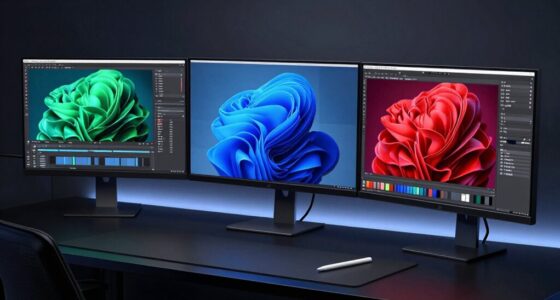
This checklist is for developers, QA professionals, and software teams building a more comfortable desk setup for long sessions of coding, testing, and design work. The picks cover common touchpoints, from keyboard and mouse positioning to screen height and support for your feet and wrists. Think of them as setup options, not a substitute for adjusting your workspace to your own needs.

Get monitors, keyboards and dev gear delivered free — and shop member deals
- Fast, free delivery on millions of items
- Access to Prime Big Deal Days deals on October 6–7
- Prime Video, Amazon Music and more included
The sections are organized by gear type, with one named pick in each slot. Each entry explains why that part of the setup matters, what to check before choosing, and where the listed product may or may not fit. The goal is to help you compare fit and compatibility across the whole desk, rather than treating each item as an isolated upgrade.
Use the checklist by measuring your available space, checking your devices and desk, and considering which discomfort or positioning issue you want to address first. Confirm product details with the seller before ordering, especially dimensions and compatibility. Make one change at a time where possible, then reassess your posture and reach. A gradual setup makes it easier to tell whether a change works for you.
Ergonomic Split Keyboard
A keyboard is a high-contact part of a developer’s workspace, so layout and placement deserve more thought than appearance alone. A split design may give you more freedom to position each half, but it still needs to feel natural for your shoulder width, typing habits, and desk space. The Kinesis Freestyle Edge RGB Plus Split Mechanical Keyboard with Hotswap is the listed pick for this slot; check its current layout and connection details before deciding whether it suits your workflow. Prioritize comfortable hand placement over features you do not expect to use.
A common mistake is assuming that a split keyboard automatically improves comfort. The halves need room to sit where your arms can reach them without forcing your shoulders outward, and your mouse must remain accessible alongside them. Check the key layout against the shortcuts and input methods you use every day. Also verify what is included and whether any desired accessories or connections are supported; do not assume they come with the keyboard. If you are changing from a conventional layout, allow for an adjustment period and assess typing accuracy as well as comfort. The right choice is the one that fits your desk layout and routine, not simply the one with the most customization.
What to look for:
- Confirm the keyboard layout matches your operating system and typing habits.
- Check the space available for both keyboard halves and your mouse.
- Review the connection details and included components with the seller.
- Consider whether the split positioning feels comfortable at your desk.
- Check whether the key arrangement suits your frequent shortcuts.
Kinesis Freestyle Edge RGB Plus Split Mechanical Keyboard with Hotswap Linear Sw

The Kinesis Freestyle Edge RGB Plus is a split mechanical keyboard designed for comfort and customization. It features hotswap linear switches, RGB lighting, ergonomic layout, detachable palm support, and full programmability, making it ideal for gamers and professionals alike.
Pros:
- Customizable with hotswap switches and programmable keys
- Ergonomic split design reduces strain during long typing sessions
- Vibrant RGB lighting enhances aesthetics
Cons:
- May be expensive for casual users
- Requires Windows 10 or later, limited Mac compatibility
- Complex setup for some users
Best for: Developers who want independently positioned keyboard halves
Not ideal for: Anyone who needs a compact, one-piece keyboard layout
Bottom line: Choose the Kinesis only after confirming its layout, connections, and split positioning suit your workspace.
Vertical Ergonomic Mouse
A mouse influences how your hand and forearm rest during repeated pointing and navigation, making its shape and hand fit important considerations. The Evoluent Vertical Mouse VMDMW Wireless Ergonomic Right-Hand USB Mouse is the listed option for users seeking a vertical-style mouse, but the right-hand designation makes fit a key checkpoint. Before choosing, confirm that the shape works with your hand size and that the buttons are reachable without strain. A comfortable grip matters more than choosing a vertical design on principle.
One frequent buying mistake is overlooking handedness or assuming a new shape will feel immediately familiar. Check the product’s current connection requirements and confirm that they work with the computer and workspace you use; the product name alone is not enough to establish every compatibility detail. Consider whether you have enough room to move the mouse freely and whether your usual pointer speed and controls can be adjusted to your preference. If possible, try a similar shape before committing, since grip comfort is personal. Pairing the mouse with a keyboard and wrist support that do not crowd your hand can help preserve clear, easy reach across the desk.
What to look for:
- Confirm the right-hand shape suits the intended user.
- Check the mouse dimensions against your hand and preferred grip.
- Verify connection requirements with your computer.
- Make sure your desk has room for comfortable mouse movement.
- Review button placement and any settings you expect to use.
Evoluent Vertical Mouse VMDMW Wireless Ergonomic Right-Hand USB Mouse

The Evoluent Vertical Mouse supports a neutral handshake position to reduce wrist strain and forearm twisting. It features adjustable pointer speeds, customizable buttons, and wireless connectivity, offering comfort and precision for long-term use.
Pros:
- Reduces wrist and forearm strain with ergonomic design
- Customizable buttons and adjustable pointer speeds
- Wireless connectivity for convenience
- High precision sensor for accurate tracking
Cons:
- Requires one AA battery, which is not rechargeable
- Limited to Windows compatibility
- Design may take time to adapt for new users
Best for: Right-handed users considering a vertical mouse shape
Not ideal for: Left-handed users or anyone who prefers a conventional mouse
Bottom line: Check hand fit and computer compatibility before choosing this right-hand vertical mouse.
Adjustable Monitor Arm
Screen placement affects where you look throughout the workday, so an adjustable arm can be useful when a monitor needs to move to suit different tasks or users. The NB Extra-Height Gaming Monitor Arm for 32–60-Inch Screens is the listed pick, and its stated screen range makes monitor compatibility the first item to verify. Confirm your display’s size and mounting requirements against the arm’s current specifications, and check that your desk can accommodate the mounting method.
A common mistake is checking screen size but ignoring the rest of the setup. The monitor’s weight, mounting pattern, desk thickness, available clearance, and nearby wall or shelf space can all affect whether an arm is workable. Verify those details using the monitor and arm documentation rather than relying on a product title alone. Consider the intended screen position before mounting: the arm should let you place the display where you can view it comfortably without blocking other equipment. Also check that you can safely install and tighten the mount on your desk. An arm is not a fix for every screen-position issue, so prioritize secure installation and usable movement over the promise of adjustability.
What to look for:
- Verify that your monitor meets the arm’s current size requirements.
- Check the monitor’s weight and mounting pattern against the arm specifications.
- Confirm the desk supports the arm’s mounting method and thickness requirements.
- Measure nearby clearance for the monitor and arm movement.
- Plan a screen position that works with your chair and working posture.
NB Extra-Height Gaming Monitor Arm for 32–60-Inch Screens

This aluminum monitor arm supports 32–60-inch monitors weighing 2–20 kg and offers height adjustment up to 27 inches, with 360° rotation, ±50° tilt, and ±90° swivel. It includes built-in RGB lighting, cable management, quick-release installation, and clamp or grommet mounting options.
Pros:
- Supports large monitors up to 60 inches and 20 kg
- Wide range of height and angle adjustments
- Built-in RGB lighting and cable management
- Quick-release design with clamp and grommet mounting options
Cons:
- Compatibility is limited to monitors with 75 × 75 mm or 100 × 100 mm VESA patterns
Best for: Users whose monitor and desk meet the arm requirements
Not ideal for: Anyone unable to confirm mounting or clearance compatibility
Bottom line: Verify monitor, desk, and installation compatibility before selecting this arm.
Footrest for Desk
A footrest can help complete a seated workstation when your feet do not rest comfortably on the floor or when you want another way to adjust lower-body support. The Step-to-Adjust Foot Rest – Infinite Height Adjustment, No Bending Need is the listed pick for this slot. Before buying, consider whether your chair and desk height leave enough room for a footrest and whether its adjustment approach suits how you work. The most useful target is stable, comfortable support, not maximum adjustability for its own sake.
One common mistake is choosing a footrest without checking the surrounding space. Measure the area under the desk, account for chair movement, and make sure the footrest will not interfere with cables or other equipment. Consider how you sit and whether you need support for both feet or room to shift position. The product name describes an adjustment feature, but check the seller’s current instructions and construction details before assuming how it operates or what range it covers. If your chair or desk height is the main issue, assess those dimensions together rather than expecting a footrest alone to resolve the setup. Look for an option that stays where you place it and allows easy position changes without interrupting your work.
What to look for:
- Measure the clear space beneath your desk.
- Check that the footrest will not obstruct your chair or cables.
- Review the adjustment method and instructions with the seller.
- Consider whether its size supports your preferred foot position.
- Assess footrest height alongside your chair and desk setup.
Step-to-Adjust Foot Rest – Infinite Height Adjustment, No Bending Needed
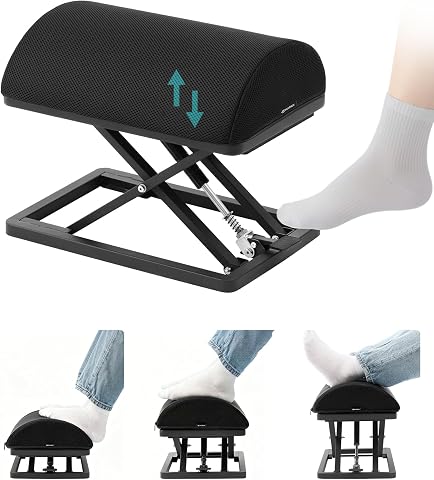
This adjustable foot rest features a patent-pending design that allows you to change its height instantly with a simple tap, providing customized support for various postures. Made from durable carbon steel with an ergonomic foam cushion, it offers stability, comfort, and long-lasting performance suitable for office, gaming, or study environments.
Pros:
- Instant height adjustment with a tap for customized comfort
- Durable construction with rust-resistant carbon steel
- Ergonomic foam cushion for targeted support and pressure relief
- Easy to set up and use right out of the box
Cons:
- Warning about potential finger entrapment during operation
- Heavy weight may reduce portability
- Requires careful handling to avoid pinching
Best for: Seated users who want another way to position their feet
Not ideal for: Workspaces with limited or obstructed under-desk room
Bottom line: Measure the under-desk area and check the adjustment details before choosing this footrest.
Laptop Stand Riser
A laptop stand can raise a screen and free up desk space beneath it, but it should be chosen around the laptop and the way you work. The Nulaxy 18″ Height Telescopic 360° Rotating Aluminum Laptop Stand, Gray is the listed pick in this slot. Its name identifies a stated height and rotating feature; verify current dimensions and compatibility with your laptop before purchase. Consider whether you will use the laptop’s own keyboard or pair it with separate input devices, since screen height and typing position need to work together. Screen and input placement should be assessed as a pair.
A frequent mistake is focusing on the stand’s movement features while overlooking stability, footprint, and cable routing. Check the supported laptop size and any other compatibility details in the seller’s documentation, then consider whether the stand leaves room for your keyboard, mouse, and other desk essentials. Think through where the laptop will sit when raised and whether its screen can be positioned comfortably from your chair. If you plan to rotate it, make sure nearby items will not interfere. Do not assume a stand replaces a separate keyboard or mouse when the laptop is elevated; decide based on your working posture and task. A good fit supports a clear, coordinated workspace without forcing your hands into an awkward reach.
What to look for:
- Confirm laptop size and compatibility with the stand’s current specifications.
- Check the stand’s footprint against your available desk space.
- Consider how an external keyboard and mouse will fit alongside it.
- Verify the height and rotation details with the seller.
- Plan cable routing and clearance around the laptop.
Nulaxy 18" Height Telescopic 360° Rotating Aluminum Laptop Stand, Gray
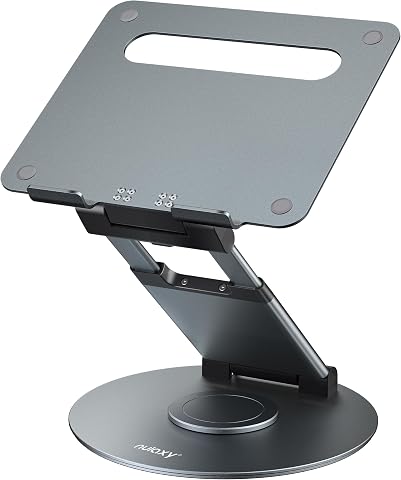
This adjustable laptop stand features 360° rotation, height up to 18 inches, and tilt angle adjustment for ergonomic comfort. It supports laptops up to 17 inches and can hold up to 22 pounds, making it ideal for collaborative work and comfortable viewing.
Pros:
- 360° rotation for easy sharing and collaboration
- Adjustable height and tilt for ergonomic comfort
- Supports laptops up to 17 inches and 22 lbs
Cons:
- Requires external keyboard and mouse for optimal use
- Laptops should be removed before adjusting height or angle
Best for: Laptop users who want an adjustable raised screen position
Not ideal for: Anyone who cannot spare desk space for a stand
Bottom line: Confirm laptop fit and desk clearance before choosing this adjustable stand.
Wrist Support Cushion
Wrist supports can change how your hands rest during typing and mouse use, so matching their size and placement to your desk matters. The Ergonomic Mouse Pad with Wrist Support and Keyboard Wrist Rest Set is the listed pick for this slot. Before choosing a set, check whether its mouse pad and keyboard support fit your devices and the space you have. Look for a position that lets your hands move naturally rather than pressing them into a fixed posture. Comfortable placement is more important than simply adding cushioning.
A common mistake is assuming that a wrist rest should hold the wrists in place while typing or mousing. Consider how you move between keys and mouse, and whether the pads leave enough room for that motion. Check the dimensions, materials, and care instructions with the seller, since the product name does not establish those details. Make sure the keyboard support aligns with your keyboard’s height and that the mouse pad suits your mouse movement area. If the set crowds your desk or changes your hand angle in an uncomfortable way, it may not suit your setup. Try to keep wrist support coordinated with your chair, keyboard, and mouse positions so the result feels natural and uncluttered.
What to look for:
- Check the dimensions of both pieces against your keyboard and desk.
- Confirm the mouse pad leaves room for your usual mouse movement.
- Consider how the keyboard support aligns with your keyboard height.
- Review material and care details with the seller.
- Position the supports so they do not restrict comfortable hand movement.
Ergonomic Mouse Pad with Wrist Support and Keyboard Wrist Rest Set

This ergonomic set includes a mouse pad and keyboard wrist rest crafted with memory foam for long-lasting support and comfort. The design features a 15-degree slope, massage beads, and a silky fabric surface to promote wrist health and precise control during extended use.
Pros:
- Provides ergonomic support to reduce wrist strain
- Comfortable massage bead design promotes blood flow
- Non-slip PU base ensures stability during use
- Easy to clean and maintain
Cons:
- May be too large for small desks
- Memory foam may flatten over time with heavy use
Best for: Users looking for coordinated keyboard and mouse supports
Not ideal for: Anyone whose desk cannot fit both pieces comfortably
Bottom line: Check dimensions and hand placement before adding this two-piece wrist-support set.
For a budget-first buying order, start with the change that addresses your clearest setup problem, then confirm fit and compatibility before adding anything else. Prioritize essentials you will use throughout the day, such as keyboard and mouse positioning, before accessories that depend on available space. Add a monitor arm, laptop riser, footrest, or wrist supports only after checking measurements and how each item will work with the rest of your desk. A measured, step-by-step approach helps avoid purchases that do not fit.
Your most comfortable workstation is the one that suits your body, equipment, and everyday tasks. Use this checklist to compare the named picks, verify current product details, and make adjustments gradually. Revisit your seating, reach, and screen placement as you work, and keep what feels useful for your routine. Small, thoughtful changes can make your setup feel more personal and practical.
Halloween Picks
halloween
As an affiliate, we earn on qualifying purchases.