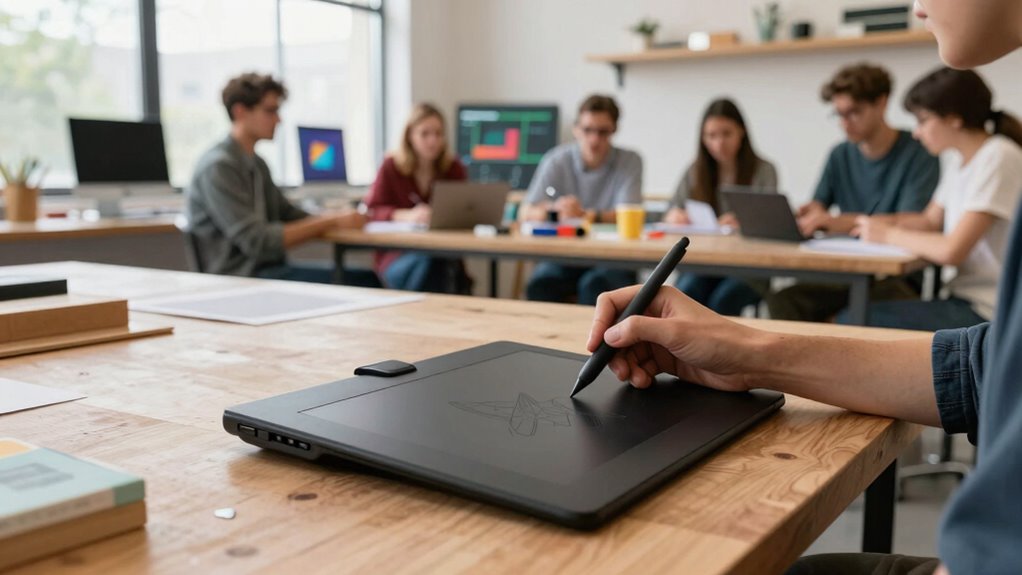

To avoid slowing down your workshop with a drawing tablet, prepare your equipment and workspace in advance. Test the stylus and calibrate the screen to guarantee responsiveness. Organize your files and update software to prevent glitches. Practice your demonstration techniques like quick strokes, shortcuts, and gestures to make it smooth. Have backup tools ready and troubleshoot minor issues calmly. Keep participants engaged with questions and visual prompts. If you want more tips, keep exploring how to optimize your setup and workflow.

Get business pricing on monitors, keyboards and dev gear
- Business-only prices and quantity discounts
- Tax-exempt purchasing
- Multiple users, one account, clear invoices
Key Takeaways
- Prepare and test equipment, software, and workspace beforehand to ensure smooth operation during the workshop.
- Familiarize yourself with drawing tablet features and shortcuts to facilitate quick demonstrations.
- Use backup tools and solutions, such as printed materials or secondary devices, to handle technical issues seamlessly.
- Keep accessories simple, reliable, and ready in advance to avoid workflow disruptions.
- Engage participants actively and incorporate visual prompts to maintain momentum without technical delays.
drawing tablet with stylus for workshops
As an affiliate, we earn on qualifying purchases.
As an affiliate, we earn on qualifying purchases.
Why Drawing Tablets Can Slow You Down : and How to Prevent It
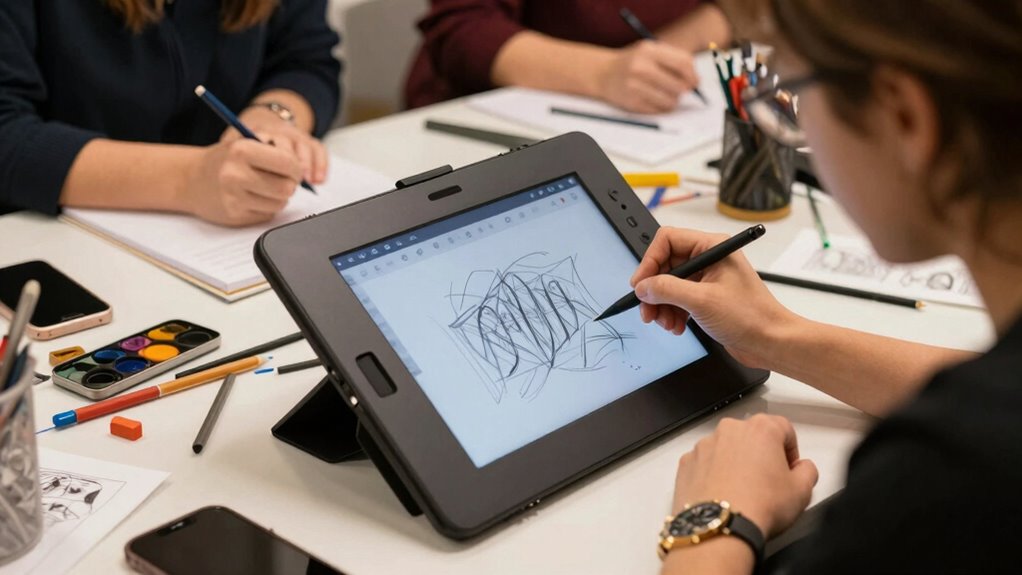
While drawing tablets can boost your creativity, they can also slow you down if you’re not used to them. A common issue is struggling with the digital stylus, which can feel unfamiliar at first. If your stylus isn’t responsive or feels awkward, it hampers your workflow. Additionally, poor screen calibration can make the cursor lag behind your hand movements, causing frustration. To prevent this, spend time adjusting your tablet’s settings to match your drawing style. Practice with the digital stylus regularly to build familiarity. Always check and calibrate your screen before starting, ensuring the stylus accurately reflects your input. These small steps help minimize delays and allow you to work smoothly, keeping your workshop productive rather than bogged down by technical hiccups. Understanding digital concepts can also help you troubleshoot issues more effectively and optimize your setup for smoother operation, especially when it comes to hardware compatibility with other devices.
calibrated drawing tablet for digital art
As an affiliate, we earn on qualifying purchases.
As an affiliate, we earn on qualifying purchases.
How to Choose the Best Drawing Tablet and Software for Your Workshop

To pick the right drawing tablet and software for your workshop, you need to take into account compatibility with your existing devices and how easily they connect. Look for software options that integrate smoothly with your workflow to save time and avoid frustration. Ensuring that your equipment supports color accuracy can also enhance your work quality and consistency. A well-chosen drawing tablet can also help improve your engine performance by providing precise control and detailed design capabilities. Finally, balance your budget with the features you need to guarantee you’re getting the best value for your investment. Incorporating home‑care techniques into your setup can also help maintain your equipment and ensure long-term performance.
Compatibility and Connectivity
Are you unsure how to guarantee your drawing tablet will work seamlessly with your workshop setup? Focus on device compatibility and connectivity options. Check if your tablet supports your computer’s operating system, whether Windows, Mac, or Linux. For connectivity, consider whether you prefer USB, Bluetooth, or Wi-Fi, depending on your workspace’s layout. Ensuring your hardware includes necessary drivers can prevent compatibility issues. Additionally, verifying software compatibility can help you avoid frustrating delays during your session.
Software Integration Options
Choosing the right drawing software is essential to maximizing your tablet’s potential in a workshop setting. Look for programs that support your digital stylus’s features, like pressure sensitivity and tilt functions, to guarantee smooth, accurate input. Compatibility is key—select software that integrates seamlessly with your device and workflow. Consider whether the software receives regular updates, as these improve stability, add features, and fix bugs, keeping your tools current. Some popular options include Adobe Creative Cloud, CorelDRAW, or free alternatives like Krita and GIMP. Evaluate what suits your workshop’s needs—whether it’s quick sketching, detailed illustration, or collaborative features. The right combination of software and hardware will help you deliver efficient, professional results without slowing down the room.
Budget and Value
When selecting a drawing tablet and software for your workshop, balancing your budget with the value you receive is essential. Proper budget planning helps you avoid overspending while ensuring quality tools. Focus on value comparison by weighing features against cost, so you get the best return. Consider these key points:
- Prioritize essential features over extras to maximize value.
- Invest in reliable brands known for durability and support.
- Explore bundled options that include necessary software at a lower price.
- Remember, a higher upfront cost may save money long-term through durability and better performance.
wireless drawing tablet for presentations
As an affiliate, we earn on qualifying purchases.
As an affiliate, we earn on qualifying purchases.
Preparing Your Drawing Tablet and Setting Up for Smooth Workshop Flow

Preparing your drawing tablet properly is essential to guarantee a smooth workshop experience. Focus on tablet ergonomics by adjusting the stand, pen sensitivity, and screen position to reduce strain and improve comfort. Test your setup beforehand to make certain everything responds smoothly. Have a variety of creative prompts ready to keep participants engaged and inspired, preventing delays during activities. Organize your digital tools and files for quick access, avoiding interruptions. Make sure your software is updated and functioning correctly. Set up a dedicated workspace with good lighting and minimal distractions. This preparation minimizes technical issues and allows you to focus on guiding your participants effectively, creating a seamless flow from start to finish. Proper setup boosts confidence and keeps the workshop running efficiently.
drawing tablet accessories for smooth workflow
As an affiliate, we earn on qualifying purchases.
As an affiliate, we earn on qualifying purchases.
Quick Techniques to Demonstrate Drawing and Annotation Efficiently
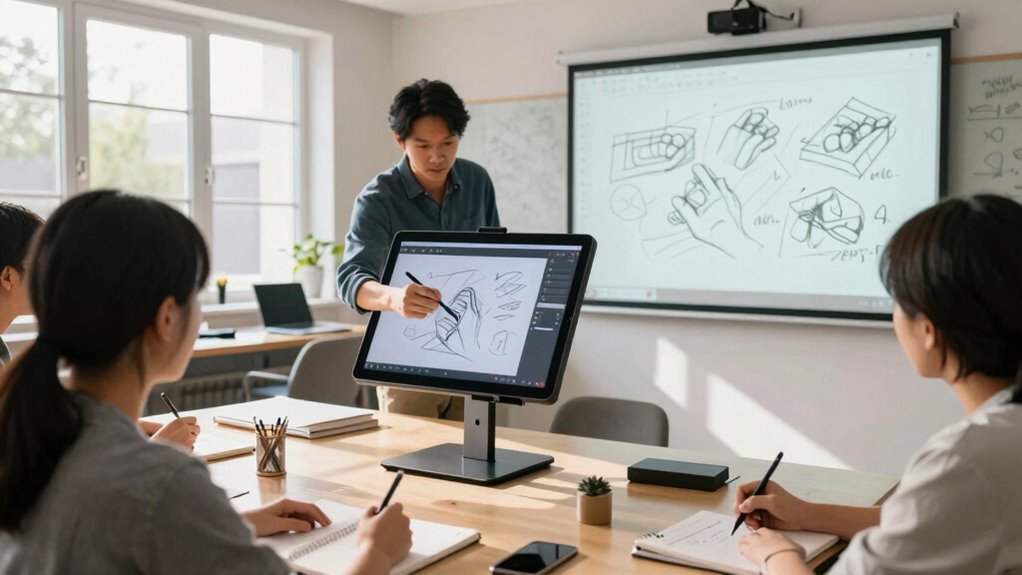
Once your tablet is set up and ready, demonstrating drawing and annotation techniques quickly can keep the workshop moving smoothly. Use gesture controls to swiftly navigate between tools and pages, reducing time spent on menu navigation. Master essential shortcut keys to switch between brushes, undo actions, or zoom, minimizing delays. Practice quick, deliberate strokes to showcase ideas clearly without overcomplicating your process. Incorporate these techniques to maximize efficiency:
- Use gesture controls to flip pages or switch tools instantly.
- Assign shortcut keys for common actions like undo, redo, or erase.
- Keep your hand movements deliberate for faster, cleaner annotations.
- Practice quick toggling between drawing modes to avoid unnecessary pauses.
- Familiarize yourself with digital drawing tools to streamline your workflow and enhance presentation speed.
- Understanding the importance of workflow optimization can further improve your efficiency during live demonstrations.
- Developing a consistent workflow ensures smoother transitions and reduces surprises during demonstrations.
- Incorporating a solid understanding of philosophical insights can inspire more authentic and confident visual explanations.
These methods help you demonstrate confidently without slowing the workshop’s pace.
Rehearsing Your Workshop to Minimize On-the-Fly Delays
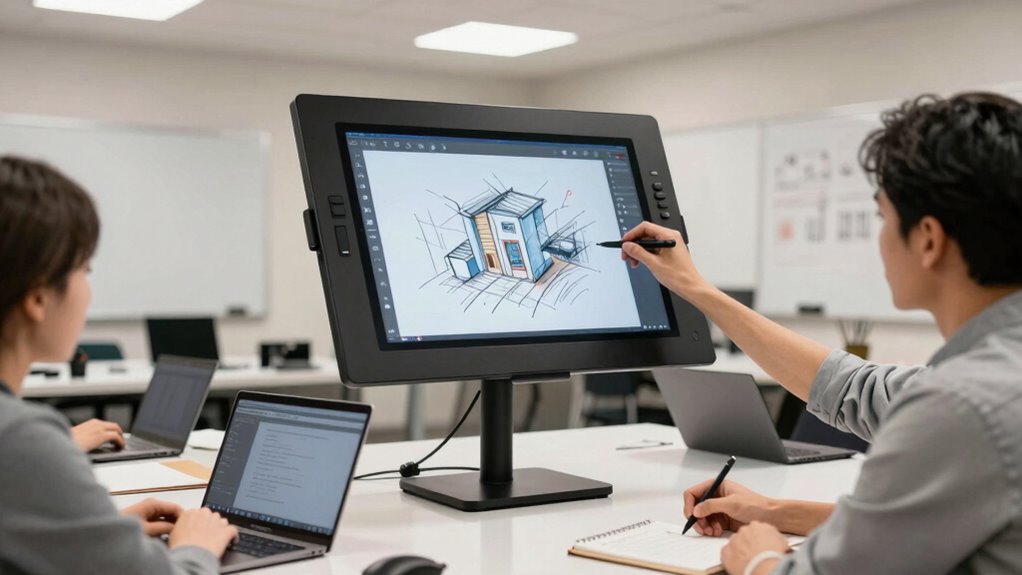
Rehearsing your workshop thoroughly is essential to identify potential delays and streamline your delivery. Practice your presentation multiple times, focusing on timing and shifts to avoid unexpected pauses. During rehearsals, simulate audience participation to guarantee smooth integration without disrupting flow. Pay attention to visual clarity, making sure your drawings and annotations are clear and easily understood. This preparation helps you anticipate questions or technical hiccups, reducing on-the-fly troubleshooting. By rehearsing, you can refine your pacing, so you don’t rush or drag, keeping participants engaged. Focus on how your tablet visuals align with your spoken content. The more prepared you are, the more confident you’ll feel, assuring your workshop runs seamlessly without slowing down in real-time.
Keeping Participants Engaged and Troubleshooting Tech Glitches

Keeping participants engaged is key to a successful workshop, so stay attentive to their reactions and encourage interaction. Be ready with backup solutions like offline activities or alternative tools in case of tech glitches. Quick troubleshooting skills help you resolve issues swiftly and keep the momentum going. Incorporating car accessories that are easy to set up can also minimize disruptions and enhance the overall experience. Additionally, choosing smart shopping guides for reliable gear ensures you have quality tools that won’t hinder your session. Being familiar with ESOPs and ownership concepts can also help you explain complex ideas clearly if relevant to your workshop content.
Managing Participant Engagement
Engagement can wane quickly during workshops if participants feel disconnected or distracted, so actively encouraging participation is essential. To foster interactive collaboration, consider these strategies:
- Ask open-ended questions to invite diverse participant feedback.
- Use real-time polls or quick surveys to gauge understanding.
- Incorporate visual prompts on the drawing tablet to stimulate ideas.
- Rotate roles or tasks to keep everyone involved and attentive.
These approaches keep energy high and help participants stay invested. Regularly check in to ensure everyone’s voice is heard, which boosts engagement and makes the workshop more dynamic. When participants feel their input matters, they’re more likely to stay focused, contribute meaningfully, and enjoy the process. This active involvement creates a productive, collaborative atmosphere.
Preparing Backup Solutions
Even with the best preparation, technical issues can disrupt the flow of a workshop and cause participants to lose focus. To prevent this, always have backup solutions ready. Keep a spare digital pen on hand, as batteries can die unexpectedly, halting your progress. Consider using a second device or a wired connection as an immediate backup if your tablet encounters issues. Check the battery life of your main device and digital pen beforehand, especially if they’re wireless. Having printed handouts or static slides prepared guarantees you can continue the session smoothly if digital tools fail. By planning for these potential problems, you keep participants engaged and minimize downtime, ensuring your workshop runs seamlessly regardless of technical hiccups. Recognizing technological disruptions and preparing for them is key to maintaining trust and engagement throughout the session.
Quick Tech Troubleshooting
When a technical glitch occurs during a workshop, quick action can prevent frustration and keep participants focused. First, check gesture controls—sometimes, simple toggling can resolve unresponsive features. Second, verify stylus calibration; an uncalibrated stylus causes inaccuracies, so recalibrate if needed. Third, restart the drawing tablet or software to clear minor bugs. Finally, have a quick backup plan, like switching to traditional tools or a secondary device. Remember, staying calm and methodical helps you troubleshoot efficiently. These steps not only fix issues swiftly but also demonstrate confidence, keeping engagement high. Being familiar with gesture controls and stylus calibration routines ensures you’re prepared for common glitches, minimizing downtime and maintaining a smooth, productive workshop environment. To streamline troubleshooting, understanding content curation can help you focus on the most relevant solutions quickly.
Post-Workshop Resources to Keep Using Your Drawing Tablet Effectively
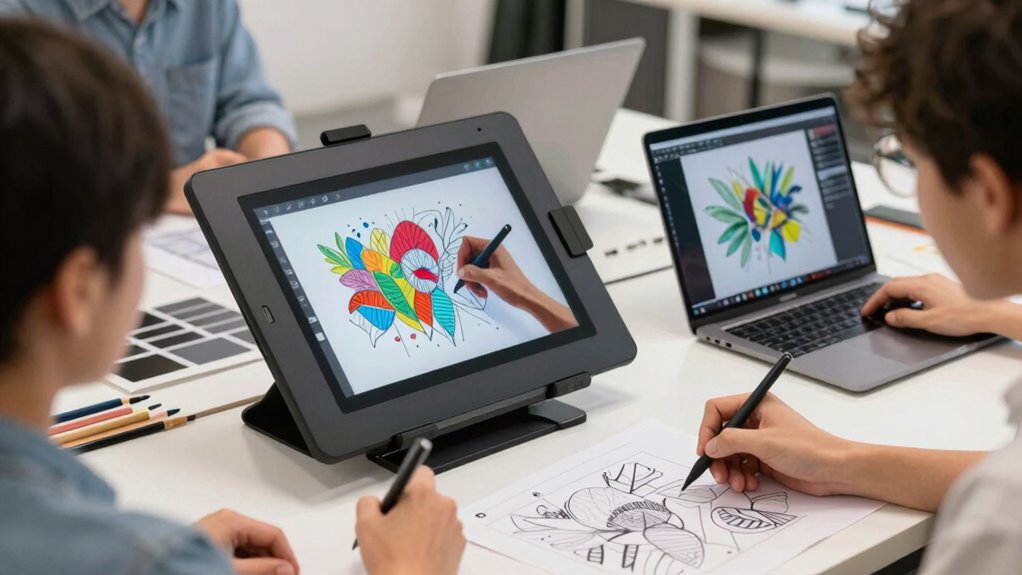
After your workshop, tapping into the right resources can considerably boost your continued progress with your drawing tablet. To refine your digital drawing skills and explore new creative techniques, consider online tutorials, courses, and forums. These resources help you practice and experiment without slowing your workflow. Incorporating digital archive-style websites can also provide a structured way to organize and revisit your ideas over time.
Frequently Asked Questions
How Can I Ensure All Participants Can See the Tablet Screen Clearly?
You can guarantee all participants see the tablet screen clearly by adjusting its positioning for maximum visual clarity. Place the tablet slightly above eye level and angle it toward the group, reducing glare and reflections. Use a larger display or connect your tablet to an external monitor if possible. Also, ask for feedback periodically, so everyone stays engaged and can see the screen details throughout the workshop.
What Backup Plans Are Recommended if the Tablet or Software Crashes?
If your tablet or software crashes, you should have a backup plan ready. Prepare tablet troubleshooting steps, like restarting or reconnecting the device. Keep alternative software options downloaded, so you can switch quickly if needed. Using a secondary device or a shared screen setup can help keep the workshop running smoothly. Being prepared with troubleshooting knowledge and software alternatives guarantees minimal disruption and keeps your session on track.
How Do I Manage Multiple Participants Using the Tablet Simultaneously?
To manage multiple participants using the tablet simultaneously, set clear rules for turn-taking and encourage collaboration. Use software that supports multi-user input and monitor participant engagement closely. Be prepared for technical troubleshooting by keeping backup devices and guides handy. By staying proactive and fostering open communication, you guarantee everyone remains engaged without slowing down the workshop, making the experience smooth and productive for all participants.
What Are the Best Ways to Train Participants on Drawing Tablet Use Quickly?
To train participants quickly on drawing tablet use, focus on gesture recognition and stylus ergonomics. Start with simple gestures to familiarize them with basic commands, then demonstrate how to hold and maneuver the stylus comfortably. Practice short exercises that emphasize natural hand movements, encouraging participants to develop good ergonomics. Keep instructions clear and hands-on, allowing everyone to gain confidence and reduce the learning curve swiftly.
How Can I Integrate Drawing Tablets With Other Workshop Presentation Tools?
You can integrate drawing tablets with other presentation tools by using a digital pen for seamless annotations and interactive elements. Guarantee screen calibration is accurate for precise input, which helps maintain flow during your workshop. Connect your tablet to presentation software like PowerPoint or live drawing apps, allowing you to switch smoothly between tools. This integration keeps participants engaged and prevents delays, making your workshop more dynamic and interactive.
Conclusion
By mastering your drawing tablet setup and techniques, you become like a seasoned conductor, guiding your workshop’s symphony with finesse. When you anticipate hurdles and rehearse your flow, you guarantee each session resonates smoothly—no discord or delays. Remember, the true artistry lies not just in your tools, but in your ability to harmonize technology with engagement. Keep practicing, and you’ll turn each workshop into a masterpiece, echoing the timeless wisdom of those who’ve mastered their craft before you.
Halloween Picks
halloween
As an affiliate, we earn on qualifying purchases.