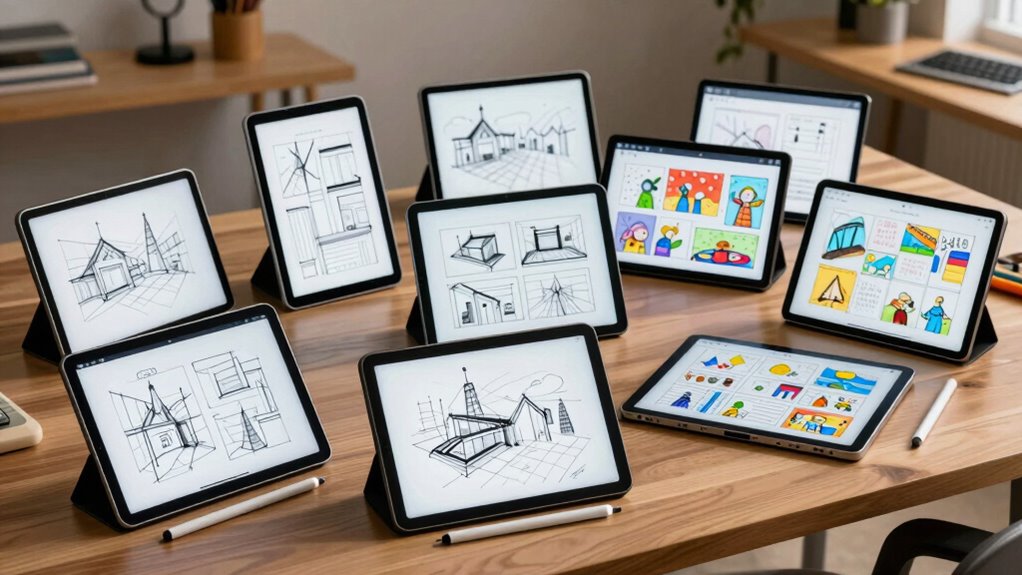
Finding the right drawing tablet for wireframing and storyboarding can significantly streamline your workflow and boost creativity. The best options balance screen quality, stylus responsiveness, and ease of use, with some models offering built-in screens while others excel in portability and affordability. The Wacom Cintiq 16 stands out as the top overall pick for its high-quality display and precise pen, while the HUION Kamvas 13 offers a great screen experience at a more accessible price. However, tradeoffs often involve balancing budget, display size, and build quality. Keep reading for a detailed breakdown to help you choose the best tablet for your specific needs.

Get monitors, keyboards and dev gear delivered free — and shop member deals
- Fast, free delivery on millions of items
- Access to Prime Big Deal Days deals on October 6–7
- Prime Video, Amazon Music and more included
Key Takeaways
- The top-performing tablets combine high-resolution screens with responsive styluses for precise wireframing and storyboarding.
- Models with screens tend to offer a more natural experience but usually come at a higher price point.
- Portability is a key factor for users who need to sketch on the go, favoring compact, lightweight tablets.
- Budget-friendly options often sacrifice screen quality or shortcut customization but still provide valuable functionality.
- The best overall tablets balance screen quality, stylus responsiveness, and value, making them suitable for most creative professionals.
| Wacom Cintiq 16 Drawing Tablet with QHD Screen & Pro Pen 3 |  | Best Overall for Professional Wireframing and Storyboarding | Display Size: 16 inches | Resolution: 2560 x 1600 (2.5K WQXGA) | Color Coverage: 99% DCI-P3, 100% sRGB | VIEW ON AMAZON | See Our Full Breakdown |
| UGEE M708 Drawing Tablet, 10×6 inch Large Space for Digital Drawing |  | Best for Beginners and Casual Wireframing | Active Drawing Area: 10 x 6 inches | Pressure Sensitivity: 16,384 levels | Compatibility: Windows, Mac, Android, Chrome OS, Linux | VIEW ON AMAZON | See Our Full Breakdown |
| XPPen Deco 01 V3 10×6 Drawing Tablet with Battery-Free Stylus and 8 Shortcut Keys |  | Best for Beginners and Hobbyists on a Budget | Pressure Sensitivity: 16,384 levels | Active Area: 10 x 6.25 inches | Stylus: Battery-free, tilt support | VIEW ON AMAZON | See Our Full Breakdown |
| Wacom Intuos Medium Bluetooth Graphics Drawing Tablet with Pen and Software |  | Best Wireless Option for Efficient Wireframing | Connectivity: Bluetooth and USB-A | Technology: EMR battery-free | Size: Medium | VIEW ON AMAZON | See Our Full Breakdown |
| HUION Inspiroy H1060P Graphics Drawing Tablet, 10 x 6.25 in, 12+16 Hot Keys |  | Best for Versatile Workflow and Professional Use | Working Area: 10 x 6.25 inches | Stylus: Battery-free with tilt support | Shortcut Keys: 12 programmable press keys, 16 soft keys | VIEW ON AMAZON | See Our Full Breakdown |
| HUION Kamvas 13 (Gen 3) Drawing Tablet with Screen |  | Best Overall for Versatile Creative Workflow | Screen Size: 13.3 inches | Color Accuracy: Avg. ΔE<1.5 | Display Colors: 16.7 million | VIEW ON AMAZON | See Our Full Breakdown |
| XPPen Artist 13.3 Pro Drawing Tablet with Screen |  | Best for Color-Rich Storyboarding and Versatile Compatibility | Display Size: 13.3 inches | Resolution: Full HD (1920×1080) | Color Gamut: 88% NTSC (Adobe RGB ≥ 91%) | VIEW ON AMAZON | See Our Full Breakdown |
| XPPen StarG640 Digital Graphic Drawing Tablet 6×4 Inch |  | Best Compact for On-the-Go Wireframing and Quick Sketches | Size: 6×4 inches | Stylus: Battery-free PN01 | Compatibility: Mac, Windows, Chromebook | VIEW ON AMAZON | See Our Full Breakdown |
| XPPen Deco 640 Drawing Tablet with 16,384 Pressure Levels |  | Best for Precise, Natural Wireframing and Storyboarding | Pressure Levels: 16,384 | Active Area: 6×4 inches | Pen Resolution: 5080 LPI | VIEW ON AMAZON | See Our Full Breakdown |
| drawing tablets for wireframing and storyboarding | Connectivity | Compatibility |
|---|---|---|
| Wacom Cintiq 16 Drawing Tablet | USB-C (DisplayPort Alt Mode or Thunderbolt 3/4) | — |
| UGEE M708 Drawing Tablet | USB to USB-C with adapters | Windows, Mac, Android, Chrome OS, Linux |
| XPPen Deco 01 V3 10×6 Drawing | USB-C, adapters included | Windows, macOS, Android, Linux |
| Wacom Intuos Medium Bluetooth | Bluetooth and USB-A | — |
| HUION Inspiroy H1060P Graphics | Micro USB, USB-C adapter, OTG connector | Windows, macOS, Android, Linux |
| HUION Kamvas 13 | USB-C single cable | — |
| XPPen Artist 13.3 Pro Drawing | USB-C | — |
| XPPen StarG640 Digital Graphic | — | Mac, Windows, Chromebook |
| XPPen Deco 640 Drawing Tablet | — | Windows 7+, Mac OS 10.12+, Android 10+, Linux |
More Details on Our Top Picks
Wacom Cintiq 16 Drawing Tablet with QHD Screen & Pro Pen 3
The Wacom Cintiq 16 stands out for its vibrant 16-inch QHD display, offering sharp visuals that make wireframes and storyboards come alive with accurate color representation. Its Pro Pen 3 with 8192 pressure levels and tilt support provides precise control, essential for detailed sketching and annotations. Compared to the HUION Inspiroy H1060P, which has a larger working area but lower resolution, the Cintiq offers crisper visuals that benefit detailed planning. The adjustable stand enhances comfort during long sessions, but the high price and need for compatible high-end computers with DisplayPort or Thunderbolt connections can be limiting for some users. This makes it ideal for dedicated professionals who prioritize display quality and stylus precision over portability or budget.
Pros:- Vivid 16-inch QHD display with excellent color coverage
- Pro Pen 3 offers 8192 pressure levels and tilt support
- Adjustable stand for ergonomic working angles
- Wide color gamut for accurate color matching
Cons:- Premium price point may be prohibitive for some users
- Requires a compatible high-end computer with DisplayPort Alt Mode or Thunderbolt 3/4
Best for: Creative professionals who need high-resolution visuals and color accuracy for wireframing and storyboarding
Not ideal for: Budget-conscious users or those seeking a portable, wireless solution for quick sketches
- Display Size:16 inches
- Resolution:2560 x 1600 (2.5K WQXGA)
- Color Coverage:99% DCI-P3, 100% sRGB
- Pen Technology:Pro Pen 3 with 8192 pressure levels
- Tilt Support:Yes
- Connectivity:USB-C (DisplayPort Alt Mode or Thunderbolt 3/4)
Our verdict“This tablet is best suited for professionals who prioritize display quality and stylus precision for wireframing and storyboarding.”
UGEE M708 Drawing Tablet, 10×6 inch Large Space for Digital Drawing
The UGEE M708 offers a sizable 10×6 inch active area, making it a strong choice for those starting out with wireframing or storyboarding. Its textured surface provides a natural feel that’s beneficial for sketching clear wireframes quickly. While it doesn’t boast the ultra-high pressure levels of 16,384 found in higher-end models like the XPPen Deco 01 V3, its balance of size and usability makes it suitable for casual or educational use. The inclusion of customizable shortcut keys can boost productivity, but its basic design and reliance on USB-C with adapters may limit portability and ease of setup. It’s an excellent entry-level option that balances affordability with a decent workspace.
Pros:- Large 10×6 inch active drawing area for ample workspace
- Textured surface enhances natural drawing feel
- Compatible with multiple operating systems and software
- Includes customizable shortcut keys for efficiency
Cons:- Limited to 8 shortcut keys, less customizable for advanced workflows
- Requires USB connection, which may limit portability
Best for: Beginners or hobbyists seeking a large active area for wireframing and storyboarding without high costs
Not ideal for: Professional artists needing advanced features or wireless connectivity for mobile workflows
- Active Drawing Area:10 x 6 inches
- Pressure Sensitivity:16,384 levels
- Compatibility:Windows, Mac, Android, Chrome OS, Linux
- Shortcut Keys:8 customizable express keys
- Connectivity:USB to USB-C with adapters
Our verdict“This tablet is ideal for beginners or casual users who want a large drawing area without the expense of professional features.”
XPPen Deco 01 V3 10×6 Drawing Tablet with Battery-Free Stylus and 8 Shortcut Keys
The XPPen Deco 01 V3 provides a reliable 10×6.25-inch active area with 16,384 pressure levels, making it a versatile choice for newcomers and hobbyists alike. Its battery-free stylus with tilt support allows natural shading and detailed work, comparable to higher-end models like the Wacom Intuos Medium. However, its limited shortcut keys and the need for multiple adapters can complicate setup, especially for casual users. While not tailored for professional workflows, its affordability and broad OS compatibility make it a compelling entry point for those starting their wireframing or storyboarding projects.
Pros:- Large active area with 16,384 pressure levels for detailed control
- Battery-free stylus with tilt support for natural shading
- Compatible across multiple OS and software platforms
- Affordable entry-level price
Cons:- Setup can be complex with multiple adapters needed
- Limited shortcut keys may reduce workflow flexibility
Best for: Beginner artists or hobbyists seeking a cost-effective drawing tablet with decent features
Not ideal for: Advanced users or professionals needing extensive shortcut customization or wireless connectivity
- Pressure Sensitivity:16,384 levels
- Active Area:10 x 6.25 inches
- Stylus:Battery-free, tilt support
- Connectivity:USB-C, adapters included
- Compatibility:Windows, macOS, Android, Linux
Our verdict“This tablet is well-suited for beginners who want a large working space and good pressure sensitivity without a high price tag.”
Wacom Intuos Medium Bluetooth Graphics Drawing Tablet with Pen and Software
The Wacom Intuos Medium offers reliable wireless performance with Bluetooth, making it a flexible choice for wireframing and storyboarding on the go. Its EMR technology delivers high precision with its battery-free pen, comparable to wired models like the HUION Inspiroy H1060P. While the wireless feature adds convenience, it requires software registration to unlock full functionality, and its medium size might limit use in tight spaces. This model suits users who value mobility and seamless integration with their workflow but don’t need a large, high-resolution screen—making it more of a control surface than a display tablet.
Pros:- Wireless Bluetooth connectivity for flexible use
- High precision with EMR technology and battery-free pen
- Compatible with all major creative software
Cons:- Full feature set requires software registration
- Limited to medium size, less suitable for detailed work or large projects
Best for: Designers who prioritize wireless freedom and compatibility with existing software setups
Not ideal for: Artists who want a large, high-resolution display or need to work in high detail for complex storyboards
- Connectivity:Bluetooth and USB-A
- Technology:EMR battery-free
- Size:Medium
- Included Software:Yes
Our verdict“This tablet is best for users who need a reliable, wireless drawing surface for wireframing and storyboarding on a flexible setup.”
HUION Inspiroy H1060P Graphics Drawing Tablet, 10 x 6.25 in, 12+16 Hot Keys
The HUION Inspiroy H1060P provides a substantial 10 x 6.25-inch active area, suitable for detailed wireframing and storyboarding. Its battery-free stylus with tilt support offers natural shading, similar to the Wacom Cintiq 16, but at a more accessible price. The 12+16 hot keys are highly customizable, allowing for complex workflows, unlike the limited keys on the XPPen Deco 01 V3. However, it requires a micro USB or USB-C connection, and compatibility issues with iOS devices and some Android phones limit mobility. Overall, this model strikes a balance between professional features and affordability, making it a flexible choice for more serious hobbyists or semi-pro users.
Pros:- Large 10 x 6.25-inch working area for detailed wireframes
- Battery-free stylus with tilt support for shading and line variation
- Many programmable shortcut keys for workflow customization
- Compatible with multiple OS and software platforms
Cons:- Requires adapters for Mac and some Android devices
- OTG connector needed for phone connection, limiting portability
Best for: Intermediate to advanced artists and designers seeking a large workspace with customizable controls
Not ideal for: Mobile users relying on wireless or iOS devices, or those with very tight budgets
- Working Area:10 x 6.25 inches
- Stylus:Battery-free with tilt support
- Shortcut Keys:12 programmable press keys, 16 soft keys
- Compatibility:Windows, macOS, Android, Linux
- Connectivity:Micro USB, USB-C adapter, OTG connector
Our verdict“This tablet offers a compelling mix of size, features, and affordability for serious wireframing and storyboarding tasks.”
HUION Kamvas 13 (Gen 3) Drawing Tablet with Screen
The HUION Kamvas 13 (Gen 3) stands out for offering a high-quality display paired with advanced pen technology, making it suitable for detailed wireframing and storyboarding. Compared with the XPPen Artist 13.3 Pro, it provides slightly better color accuracy and more customizable shortcut options, but it requires connection to a computer, which limits portability. Its fully laminated screen and 16.7 million colors ensure vibrant visuals, while the dual dial and five programmable keys enhance workflow efficiency. The adjustable stand adds ergonomic flexibility, and broad OS compatibility makes it adaptable to many creative setups. However, it’s not standalone, so users need a PC or Mac, which could be a drawback for those seeking portable, all-in-one devices. This model suits artists and designers who prioritize a high-quality, versatile display with detailed control, but it’s less ideal for those wanting a portable or standalone solution.
Pros:- High color accuracy with factory calibration ensures vibrant visuals
- Natural drawing experience with advanced pen technology
- Multiple customization options with shortcut keys and dual dial
- Compatible with a wide range of operating systems
Cons:- Requires connection to a computer or laptop to operate
- No standalone functionality; less portable
Best for: Professional designers and artists who need a reliable, color-accurate display for detailed wireframing and storyboarding on a desktop setup
Not ideal for: Creative professionals seeking a portable or standalone device, since it requires a computer connection
- Screen Size:13.3 inches
- Color Accuracy:Avg. ΔE<1.5
- Display Colors:16.7 million
- Color Gamut:99% sRGB, Rec.709
- Pen Sensitivity:16384 levels
- Connectivity:USB-C single cable
Our verdict“This tablet is perfect for professionals needing a high-quality, versatile display for detailed wireframing and storyboarding on a dedicated workspace.”
XPPen Artist 13.3 Pro Drawing Tablet with Screen
The XPPen Artist 13.3 Pro offers a full-laminated FHD display with excellent color accuracy and tilt support, making it a strong choice for wireframing and storyboarding where vibrant visuals and natural shading matter. Compared with the HUION Kamvas 13 (Gen 3), it provides slightly broader color gamut options and a more extensive feature set, including tilt support up to 60 degrees, which benefits shading and line variation. Its 8 customizable shortcut keys streamline workflow, and its wide OS compatibility—from Windows and Mac to Chrome OS and Linux—offers flexible software options. However, like the Kamvas, it needs to be connected to a computer, limiting mobility. Its slightly lower color accuracy (88% NTSC) may be a concern for color-critical work. This makes it ideal for designers and storyboard artists who want solid color fidelity and multitasking flexibility, but less so for those prioritizing portability.
Pros:- Excellent color accuracy and wide viewing angles for vibrant visuals
- Tilt support allows natural shading and line work
- Multiple customizable shortcut keys enhance workflow efficiency
- Broad OS compatibility facilitates flexible software use
Cons:- Requires connection to a computer, reducing portability
- Slightly lower color accuracy compared to some competitors
Best for: Storyboarding artists and UI designers who value color richness and tilt support for natural drawing on a desktop setup
Not ideal for: Users seeking a portable, standalone device, as it requires a computer connection
- Display Size:13.3 inches
- Resolution:Full HD (1920×1080)
- Color Gamut:88% NTSC (Adobe RGB ≥ 91%)
- Tilt Support:Up to 60 degrees
- Pressure Levels:16,384
- Connectivity:USB-C
Our verdict“This tablet suits creative professionals who need a colorful, feature-rich display for detailed wireframing and storyboarding at a desk.”
XPPen StarG640 Digital Graphic Drawing Tablet 6×4 Inch
The XPPen StarG640 is a compact, portable drawing tablet with a 6×4 inch active area, making it ideal for quick wireframing and storyboarding in varied locations. Its battery-free stylus provides smooth drawing without charging concerns, and compatibility with Mac, Windows, and Chromebook broadens its usability. Compared to larger tablets like the HUION Kamvas 13, it sacrifices screen size but wins in portability and ease of use for impromptu sketching sessions. The small active area can limit detailed work, but for quick wireframes or storyboards, it’s a practical choice. The lack of a display means you’ll rely on your monitor, which can be a drawback for detailed or color-sensitive tasks. This tablet is best suited for professionals needing a lightweight, portable device for fast sketches and wireframes on the move.
Pros:- Highly portable and easy to carry
- Battery-free stylus offers smooth, responsive drawing
- Broad OS compatibility including Chromebook
- Simple, effective for quick wireframing
Cons:- Limited active drawing area restricts detailed work
- No built-in display, relies on external monitor
Best for: Freelance designers and storyboard artists who need a portable device for quick sketches and wireframes outside a fixed workspace
Not ideal for: Creative workflows requiring detailed, color-accurate work or larger drawing surfaces, due to its small active area
- Size:6×4 inches
- Stylus:Battery-free PN01
- Compatibility:Mac, Windows, Chromebook
- Thickness:2 mm
- Weight:0.37 lbs
- Warranty:One-year
Our verdict“This compact tablet is ideal for professionals who need a lightweight device for quick wireframes and sketches on the go, but it’s less suited for detailed or color-critical projects.”
XPPen Deco 640 Drawing Tablet with 16,384 Pressure Levels
The XPPen Deco 640 offers a 6×4 inch active area with high 16,384 pressure sensitivity levels, making it a standout for detailed wireframing and storyboarding where precision is key. Compared with the XPPen StarG640, it provides a slightly better pen resolution and report rate, enhancing responsiveness and control. Its ergonomic design and soft keys support efficient workflow, while broad OS compatibility ensures it works across Windows, Mac, Android, and Linux platforms. Since it lacks a built-in display, users must rely on external screens, which can be a limitation for those who prefer a dedicated drawing view. Nevertheless, its high pressure sensitivity makes it suitable for artists who need nuanced control for detailed line work or shading. This pick is best for professionals and serious hobbyists who prioritize precision and natural feel in wireframing and storyboarding.
Pros:- High 16,384 pressure sensitivity for nuanced control
- Compact, lightweight, and ergonomic design
- Wide OS compatibility including Linux and Android
- Affordable high-sensitivity option for detailed work
Cons:- Limited active drawing area limits detailed work
- No built-in display, reliant on external monitor
Best for: Experienced designers and storyboard artists who value high pressure sensitivity and precise control for detailed wireframes and sketches
Not ideal for: Beginners or those seeking a portable, standalone device with a display, as it requires an external monitor
- Pressure Levels:16,384
- Active Area:6×4 inches
- Pen Resolution:5080 LPI
- Report Rate:220 RPS
- Compatibility:Windows 7+, Mac OS 10.12+, Android 10+, Linux
- Stylus:Battery-free, pressure-sensitive
Our verdict“This tablet is well-suited for experienced professionals needing precise, natural control in wireframing and storyboarding, but it’s not ideal for beginners or portable use.”

How We Picked
The products in this roundup were evaluated based on several key criteria: display quality, stylus responsiveness and pressure sensitivity, build durability, ease of use, and value for the price. We prioritized tablets that excel in wireframing and storyboarding workflows, favoring models with intuitive interfaces and reliable performance. Additional factors like portability, shortcut customization, and compatibility with common design software also influenced rankings. Products that offered a good balance of features without excessive cost earned higher scores, while those with notable tradeoffs were positioned accordingly.| drawing tablets for wireframing and storyboarding | Compatibility |
|---|---|
| Wacom Cintiq 16 Drawing Tablet | — |
| UGEE M708 Drawing Tablet | Windows, Mac, Android, Chrome OS, Linux |
| XPPen Deco 01 V3 10×6 Drawing | Windows, macOS, Android, Linux |
| Wacom Intuos Medium Bluetooth | — |
| HUION Inspiroy H1060P Graphics | Windows, macOS, Android, Linux |
| HUION Kamvas 13 | — |
| XPPen Artist 13.3 Pro Drawing | — |
| XPPen StarG640 Digital Graphic | Mac, Windows, Chromebook |
| XPPen Deco 640 Drawing Tablet | Windows 7+, Mac OS 10.12+, Android 10+, Linux |
Factors to Consider When Choosing Drawing Tablets For Wireframing And Storyboarding
Choosing the best drawing tablet for wireframing and storyboarding involves considering multiple factors beyond just hardware specs. Understanding your workflow, budget, and preferred interface can help narrow down options. Here are some critical factors to keep in mind when making a decision:Display Quality and Size
The clarity and resolution of the screen directly impact your ability to see fine details in your wireframes and storyboards. Larger screens provide more workspace, which can speed up your workflow, but they also add to the cost and reduce portability. Consider your typical working environment—if you often work on the go, a compact tablet with a high-quality display might serve you better. Conversely, for detailed work at a fixed station, a larger screen can be worth the investment.
Stylus Responsiveness and Pressure Sensitivity
The stylus is your primary tool for sketching, so responsiveness and pressure sensitivity are crucial. Higher pressure levels allow for more nuanced strokes, essential for detailed wireframes and expressive storyboarding. Look for models with low latency and tilt support if you want a more natural drawing experience. Keep in mind that some budget options may have less precise stylus tracking, which can hinder your workflow over time.
Build Quality and Durability
A sturdy, well-built tablet minimizes the risk of damage during daily use, especially if you often travel or work in different locations. While premium models tend to use higher-quality materials, even budget options should have a solid construction to withstand regular handling. Consider the overall weight and ergonomics, especially if you plan to use the device for extended periods.
Software Compatibility and Workflow
Ensure the tablet supports your preferred software, whether it’s Adobe XD, Figma, or other wireframing tools. Some tablets come with bundled software or drivers optimized for specific applications, providing a smoother experience. Compatibility with both Mac and Windows platforms is another factor, especially if you switch between systems. Be mindful of driver stability and support updates, as these can impact your productivity.
Budget and Long-term Value
While it might be tempting to go for the cheapest option, investing in a device that offers better performance and durability can pay off over time. Consider your budget in relation to the features you require—sometimes spending more upfront saves money on replacements or upgrades later. Balance the need for advanced features with affordability, and look for models that provide good value for their price point.
Frequently Asked Questions
Should I buy a drawing tablet with a screen or a non-display tablet for wireframing?
Choosing between a display and non-display tablet depends on your workflow preferences and budget. Screen tablets offer a more natural drawing experience, making it easier to sketch directly onto your wireframes and storyboards. They tend to be more intuitive but also come at a higher cost. Non-display tablets are often more affordable and portable, relying on your monitor for visual feedback, which might require some adjustment but can still be effective for detailed design work.
How important is pressure sensitivity for wireframing and storyboarding?
Pressure sensitivity enhances the control you have over line weight and stroke nuance, which can make your wireframes and storyboards look more professional and polished. Higher pressure levels enable more expressive sketching, especially when adding annotations or shading. However, for simple wireframes, a moderate level of sensitivity might suffice. Consider how much detail and expressiveness your work requires before prioritizing this feature.
Can I use a drawing tablet with a stylus on multiple operating systems?
Most modern drawing tablets are compatible with both Windows and Mac, and some even support Chrome OS or Android. It’s important to verify driver support for your specific OS, as some models perform better on one platform or require specific software. Compatibility with your existing workflow software is also critical—check for driver stability and software updates to prevent disruptions during creative sessions.
Is it worth investing in a premium drawing tablet for wireframing?
Premium tablets typically offer superior display quality, more precise stylus tracking, and better build quality, which can significantly improve your workflow. If your work involves detailed sketches or frequent revisions, investing in a higher-end device can save time and reduce frustration. However, if you’re just starting out or on a tight budget, mid-range options can still deliver excellent results without the hefty price tag.
What features should I prioritize if I mainly work on storyboarding?
For storyboarding, a large, high-resolution screen with good color accuracy is beneficial to visualize scenes effectively. A responsive stylus with tilt support can help create dynamic, varied strokes, adding expressiveness to your sketches. Shortcut buttons and ergonomic design are also valuable for quick access to tools, enabling a smoother storytelling process. Consider portability if you plan to work on different locations, and choose a device that balances these features within your budget.
Conclusion
For most users, the Wacom Cintiq 16 remains the best overall choice due to its high-quality display and precise stylus, perfect for professional wireframing and storyboarding. Budget-conscious creators will find the XPPen Deco 01 V3 offers excellent value with a large drawing area and reliable performance. Beginners or those new to digital sketching might prefer the Wacom Intuos Medium, thanks to its intuitive interface and lower cost. For those seeking portability and a screen experience, the HUION Kamvas 13 strikes a compelling balance. Ultimately, your decision should align with your workflow needs, budget, and whether you prioritize a built-in screen or portability.Halloween Picks
halloween
As an affiliate, we earn on qualifying purchases.