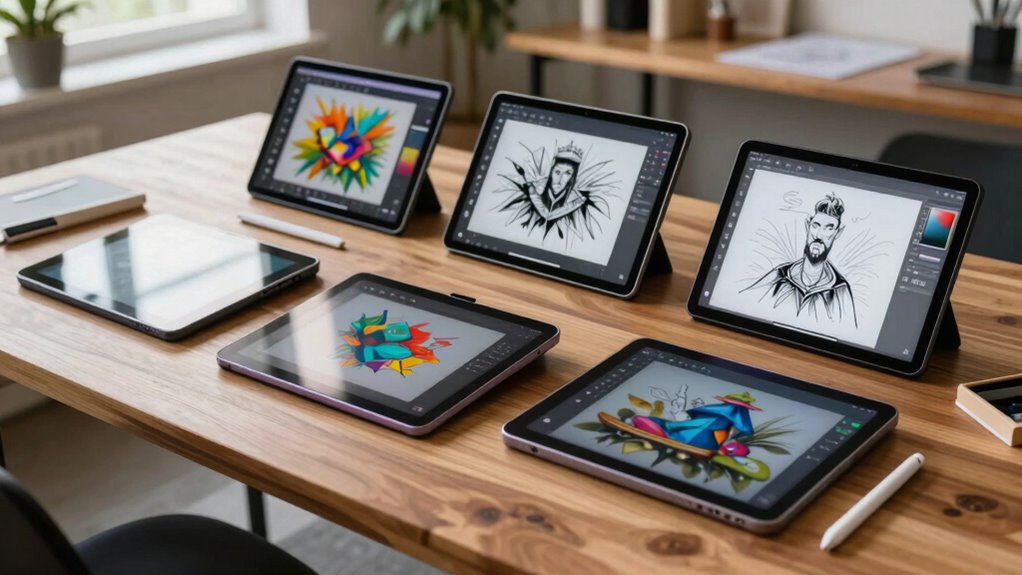

Choosing a portable drawing tablet for creative professionals involves balancing performance, portability, and price. The Wacom Intuos Small Graphics Tablet stands out as the best overall for its reliable performance and software support. For those needing a screen, the XPPen Artist 13.3 Pro offers a great display and versatility, while the Wacom MovinkPad 11 excels with Android compatibility for working on the go. Readers should weigh tradeoffs like built-in screens versus portability, price differences, and compatibility with their workflows. Continue reading for an in-depth comparison to find the best fit for your creative needs.

Get business pricing on monitors, keyboards and dev gear
- Business-only prices and quantity discounts
- Tax-exempt purchasing
- Multiple users, one account, clear invoices
Key Takeaways
- The top-ranked options balance portability with performance, favoring models with reliable stylus responsiveness and build quality.
- Built-in screens significantly enhance workflow but come with a higher price and reduced portability compared to pen-only models.
- Android compatibility, like in the MovinkPad 11, opens up versatile use cases but may limit some professional features found on dedicated PCs or Macs.
- Affordable options like the Wacom Intuos Small provide great value for beginners but lack advanced features needed for professional work.
- Battery life and connectivity options vary widely; choosing between Bluetooth, Wi-Fi, or wired connections impacts usability on the go.
| Wacom Intuos Small Graphics Drawing Tablet with Software and Training |  | Best Overall for Beginners and Versatile Creators | Size: Small | Compatibility: Chromebook, Mac, Android, Windows | ExpressKeys: 4 customizable keys | VIEW ON AMAZON | See Our Full Breakdown |
| XPPen Artist 13.3 Pro Drawing Tablet with Screen, Adjustable Stand, and 8 Shortcut Keys |  | Best for Professionals Needing Color Accuracy and Flexibility | Display Size: 13.3 inches | Color Gamut: 88% NTSC (Adobe RGB ≧91%, sRGB ≧123%) | Resolution: Full HD | VIEW ON AMAZON | See Our Full Breakdown |
| Wacom Intuos Small Bluetooth Graphics Drawing Tablet |  | Best Wireless Convenience for Mobile Creators | Active Area: 7 inches | Pressure Levels: 4096 | Connectivity: Bluetooth, USB-A | VIEW ON AMAZON | See Our Full Breakdown |
| Wacom MovinkPad 11 Android Mobile Drawing Tablet with Pro Pen 3 |  | Best Standalone Android Option for On-the-Go Creativity | Display: 11.45 inches | Operating System: Android 14 | RAM: 8 GB | VIEW ON AMAZON | See Our Full Breakdown |
| PicassoTab A10 Drawing Tablet – 10″ Screen, 6GB RAM, 128GB Storage, Android 14, Stylus Pen, Pro Drawing Apps & Tutorials |  | Best for Beginners Seeking a Complete Portable Drawing Solution | Display: 10-inch laminated IPS HD | Processor: Octa-core CPU | RAM: 6GB | VIEW ON AMAZON | See Our Full Breakdown |
| RubensTab T11 Pro Standalone Drawing Tablet, 10.1 inch FHD Display, Octa-Core CPU, Pre-Installed Apps & Tutorials |  | Best Standalone for Portability and Ease of Use | Display: 10.1 inch FHD IPS (1920×1200P) | Processor: Octa-Core CPU | Battery: 5800mAh, up to 5 hours use | VIEW ON AMAZON | See Our Full Breakdown |
| portable drawing tablets for creative professional | Display |
|---|---|
| Wacom Intuos Small Graphics Dr | — |
| XPPen Artist 13.3 Pro Drawing | — |
| Wacom Intuos Small Bluetooth G | — |
| Wacom MovinkPad 11 Android Mob | 11.45 inches |
| PicassoTab A10 Drawing Tablet | 10-inch laminated IPS HD |
| RubensTab T11 Pro Standalone D | 10.1 inch FHD IPS (1920×1200P) |
More Details on Our Top Picks
Wacom Intuos Small Graphics Drawing Tablet with Software and Training
The Wacom Intuos Small stands out for its precise control through battery-free EMR technology, making it a reliable choice for both newcomers and seasoned artists. Compared with the Wacom MotionPad, it offers a more intuitive user experience and better compatibility with major software, although its small size can limit larger projects. The included software and online training lower the entry barrier, making it ideal for those just starting out or exploring digital art. Its main tradeoff is the limited active drawing area, which might frustrate artists working on detailed projects. For users seeking a straightforward, portable solution with robust support, this tablet makes a compelling case.
Pros:- High precision with battery-free pen technology
- Compatible with all major software platforms
- Includes software and online training for easy onboarding
Cons:- Limited active drawing area may hinder detailed work
- Requires compatible software for full functionality
Best for: Beginners or casual creators who want an affordable, reliable entry point into digital art.
Not ideal for: Artists working on large-scale projects or those needing extensive workspace, due to its small size.
- Size:Small
- Compatibility:Chromebook, Mac, Android, Windows
- ExpressKeys:4 customizable keys
- Color:Black
- Technology:EMR (Electromagnetic Resonance)
Our verdict“This tablet suits beginners and those prioritizing portability and ease of use over large workspace needs.”
XPPen Artist 13.3 Pro Drawing Tablet with Screen, Adjustable Stand, and 8 Shortcut Keys
The XPPen Artist 13.3 Pro excels with a fully-laminated Full HD display that offers vibrant colors and wide viewing angles, making it a top choice for professional artists compared to the smaller Wacom Intuos Small. Its support for tilt functionality and 16,384 pressure levels provide a natural, nuanced drawing experience. Customizable shortcut keys streamline workflow, especially for detailed projects, but the need for connection to a computer may be a limitation for those seeking a standalone device. It’s better suited for artists who want a high-quality display and tactile control, yet it can be pricier and requires some learning curve for new users. Overall, this model balances image quality and functionality for serious creators.
Pros:- High color accuracy with 88% NTSC coverage
- Supports tilt for natural shading
- Customizable shortcut keys for efficiency
- Fully laminated screen reduces parallax
Cons:- Requires connection to a computer or laptop
- Higher price point and potential learning curve
Best for: Professional artists and designers who require high color fidelity and tactile shading capabilities.
Not ideal for: Users seeking a portable, standalone device or beginners who prefer simplicity over advanced features.
- Display Size:13.3 inches
- Color Gamut:88% NTSC (Adobe RGB ≧91%, sRGB ≧123%)
- Resolution:Full HD
- Tilt Support:Up to 60 degrees
- Pressure Levels:16,384
- Viewing Angle:178 degrees
Our verdict“This drawing tablet is ideal for professionals demanding high display quality and advanced control features.”
Wacom Intuos Small Bluetooth Graphics Drawing Tablet
The Wacom Intuos Small Bluetooth offers the freedom of wireless drawing, making it stand out against wired options like the XPPen Artist 13.3 Pro. Its Bluetooth connectivity allows for flexible setup and movement, which is especially valuable for educators or students who need to switch between devices seamlessly. The battery-free pen delivers a natural drawing feel, but the small 7-inch active area can be restrictive for detailed or larger artworks. Its compatibility across multiple operating systems enhances its versatility, yet the need to register software for full features adds a slight hurdle. For those valuing mobility over workspace size, this tablet is a compelling pick.
Pros:- Wireless Bluetooth connectivity for flexibility
- Battery-free pen offers natural control
- Compatible across multiple OS and software
Cons:- Small active area limits detailed work
- Requires software registration for full features
Best for: Creative professionals and educators who prioritize wireless operation and portability.
Not ideal for: Artists requiring larger drawing surfaces or detailed work that benefits from a bigger active area.
- Active Area:7 inches
- Pressure Levels:4096
- Connectivity:Bluetooth, USB-A
- Compatibility:Chromebook, Mac OS, Android, Windows
- Color:Black
- ExpressKeys:4
Our verdict“This tablet suits mobile-minded creators who need wireless freedom at a compact size.”
Wacom MovinkPad 11 Android Mobile Drawing Tablet with Pro Pen 3
The Wacom MovinkPad 11 is designed for artists who want a portable, standalone device running Android 14, with a high-precision Pro Pen 3 that supports 8,192 pressure levels. Its lightweight 1.3-pound design makes it highly portable, suitable for sketching or note-taking anywhere. Compared to the PicassoTab A10, it offers a more refined stylus and a more compact form factor, but it’s limited to the Android ecosystem, which could restrict software choices. The inclusion of drawing apps and trials makes it ready for immediate use, yet the absence of a computer connection might mean additional accessories for full functionality. It’s best suited for creators who need a dedicated device for quick sketches and ideas on the move.
Pros:- Lightweight and portable for mobile use
- High-precision Pro Pen 3 with 8,192 pressure levels
- Includes pre-installed drawing apps and trials
Cons:- Limited to Android platform, reducing software flexibility
- May require additional accessories for full functionality
Best for: Creative professionals and students who want a compact, standalone Android device for quick sketches and notes.
Not ideal for: Artists needing extensive software support or those working on complex projects requiring desktop-grade tools.
- Display:11.45 inches
- Operating System:Android 14
- RAM:8 GB
- Storage:128 GB
- Pen:Pro Pen 3 with 8,192 pressure levels
- Weight:1.3 lbs
Our verdict“This device suits Android users seeking a dedicated, portable drawing tablet for on-the-go ideas.”
PicassoTab A10 Drawing Tablet – 10″ Screen, 6GB RAM, 128GB Storage, Android 14, Stylus Pen, Pro Drawing Apps & Tutorials
The PicassoTab A10 offers a balanced mix of portability and functionality, with a 10-inch laminated IPS HD display that delivers sharp visuals. Its included stylus with 4,096 pressure levels and palm rejection provides a natural drawing experience. Designed primarily for beginners or casual artists, it comes bundled with professional drawing apps, tutorials, and a full accessory kit, making it ready for immediate use. Compared with the Wacom Intuos Small, it’s more of a standalone device, but customer reviews suggest some stability issues or user experience quirks. The expandable storage option adds flexibility, though it requires extra purchase. It’s an appealing choice for those starting out or needing a portable device with all-in-one features.
Pros:- Portable and lightweight for on-the-go use
- Includes professional drawing apps and tutorials
- Stylus with palm rejection for natural drawing
- Complete accessory kit for immediate use
Cons:- Limited to beginner and casual use
- Customer reviews indicate some stability issues
Best for: Beginners and casual artists who want an all-in-one portable drawing device with tutorials and accessories.
Not ideal for: Advanced artists or professionals seeking precise control and larger workspace for complex projects.
- Display:10-inch laminated IPS HD
- Processor:Octa-core CPU
- RAM:6GB
- Storage:128GB (expandable to 1TB)
- Operating System:Android 14
- Stylus:Picasso Pen 3 with 4096 pressure levels
Our verdict“This tablet is a strong pick for newcomers looking for an affordable, ready-to-go portable drawing setup.”
RubensTab T11 Pro Standalone Drawing Tablet, 10.1 inch FHD Display, Octa-Core CPU, Pre-Installed Apps & Tutorials
The RubensTab T11 Pro stands out for its completely standalone design, eliminating the need for a computer—making it highly portable for artists on the go. Compared to the Wacom MovinkPad 11, which relies on Android and may have a more limited app ecosystem, the T11 Pro runs on a more versatile platform, supporting pre-installed apps and tutorials that cater to beginners and pros alike. Its vibrant 10.1-inch FHD IPS display offers wide viewing angles, and the high-sensitivity pen provides a natural drawing feel. However, the battery life is capped at around five hours, which could be limiting during longer sessions, and its lack of expandable storage or additional ports might restrict workflow flexibility. This device makes the most sense for artists, students, or professionals needing a compact, all-in-one solution that can operate independently without a laptop or desktop.
Pros:- Completely standalone device, no computer needed
- Vivid 10.1-inch Full HD display with wide viewing angles
- High-sensitivity, battery-free stylus for natural drawing experience
- Pre-installed apps and tutorials tailored for beginners and experienced artists
Cons:- Battery life limited to approximately 5 hours, restricting longer use
- No mention of expandable storage or additional ports for accessories
Best for: Creative professionals and students who require a portable, all-in-one drawing device for quick sessions and on-the-move work.
Not ideal for: Artists needing extended working hours or those who require extensive storage options, as the battery life is limited and no expansion slots are available.
- Display:10.1 inch FHD IPS (1920×1200P)
- Processor:Octa-Core CPU
- Battery:5800mAh, up to 5 hours use
- Charging:USB-C
- Pen:High-sensitivity, no battery required
- Connectivity:Wi-Fi
- Included Accessories:Digital pen, stylus, gloves, cleaning cloth
- Stand:Adjustable stand case
Our verdict“This pick is ideal for mobile artists and students seeking a portable, all-in-one drawing tablet that doesn’t rely on external devices.”
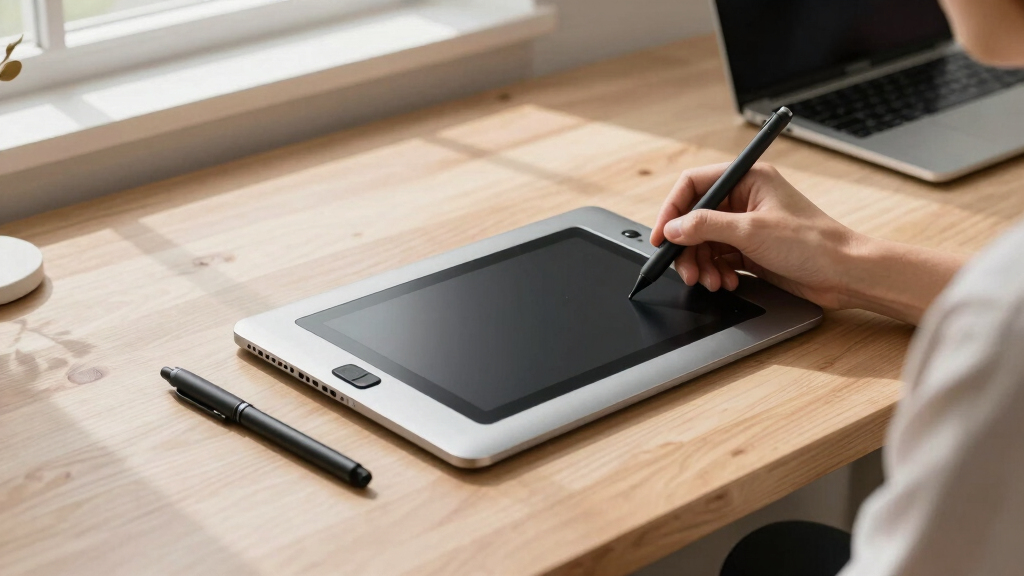
How We Picked
Our evaluation focused on performance, usability, build quality, and value for creative professionals who need portability. We prioritized models that offer reliable stylus responsiveness, comfortable ergonomics, and good compatibility with professional software. Portability was a key factor, so lightweight design and battery life played a significant role. We also considered whether the device includes a screen, as this impacts workflow and mobility. The ranking reflects a balance of these factors, aiming to recommend options suited for different budgets and professional needs.Factors to Consider When Choosing Portable Drawing Tablets For Creative Professionals
When selecting a portable drawing tablet for creative work, it’s important to consider several key factors that impact your overall experience and productivity. Understanding the tradeoffs between screen quality, portability, and price can help you make an informed choice that suits your specific needs. Below are the main considerations that influence which tablet will work best for you.Display Quality and Screen Size
The decision to get a screen-enabled tablet or a pen-only model hinges on your workflow. Larger, high-resolution screens improve precision and reduce eye strain but add weight and cost. If mobility is a priority, a smaller display or a pen-only device may be more practical. Consider your typical working environment — if you often work outdoors or travel, a compact device with a high-quality display can make a big difference.
Connectivity and Power Options
Wireless connectivity like Bluetooth or Wi-Fi offers freedom of movement but can sometimes introduce latency or connection stability issues. Wired connections provide more reliable performance but reduce convenience. Battery life is also critical; devices with longer battery life ensure uninterrupted creative sessions without frequent recharging. Prioritize models that balance these factors based on your typical work routines.
Stylus Performance and Responsiveness
The stylus is your primary tool, so its responsiveness, pressure sensitivity, and tilt support directly affect your drawing experience. Budget models often cut corners here, leading to lag or less accurate input. Professional-grade tablets usually feature high levels of pressure sensitivity and tilt detection, which are essential for detailed artwork and smooth strokes. Test or review stylus latency when possible to gauge real-world performance.
Operating System Compatibility and Software Support
Ensure the tablet seamlessly integrates with your preferred creative software, whether that’s Adobe Photoshop, Clip Studio Paint, or others. Some devices run on Android, Windows, or iOS, each with its own ecosystem and app availability. Compatibility issues can hinder your workflow, so check whether your essential tools are supported and whether the device supports updates or drivers for professional use.
Price and Value
Price ranges widely, from budget-friendly options to premium devices with high-end features. While spending more often guarantees better build quality and performance, it’s important to match the device’s capabilities to your actual needs. Beginners or hobbyists may find value in more affordable models, while professionals should consider investing in higher-tier options that withstand rigorous use and offer advanced features.
Additional Features and Accessories
Extras like adjustable stands, customizable shortcut buttons, or bundled software can enhance your workflow. Some tablets come with tutorials or pre-installed creative apps, which are especially useful for beginners. Consider whether the device supports accessories you already own or plan to acquire, such as different stylus nibs or cases, to maximize your investment.
Frequently Asked Questions
Can I use a portable drawing tablet without a computer?
Yes, some models like the RubensTab T11 Pro are standalone devices with built-in screens and operating systems, allowing you to create without a connected PC or Mac. These tablets typically come with pre-installed software and sufficient processing power for most creative tasks. However, they tend to be more expensive and heavier than pen-only options, which might limit portability if you prefer a lighter setup. Evaluate whether the convenience of an all-in-one device outweighs the additional cost for your workflow.
Is a screen necessary on a portable drawing tablet?
Not necessarily. Pen-only models like the Wacom Intuos Small are highly portable, lightweight, and often more affordable, making them ideal for sketching or editing on the go. However, having a screen enhances precision, reduces workflow steps, and offers a more intuitive drawing experience. If your work involves detailed illustration or frequent editing, a screen-enabled tablet can significantly improve productivity, but it comes with increased cost and weight.
How important is battery life for portable drawing tablets?
Battery life is a critical factor if you plan to work remotely or on long trips without easy access to power outlets. A longer battery life allows you to focus on your work without frequent recharging, which is especially helpful during travel or outdoor sessions. Many tablets now offer several hours of use on a single charge, but always check user reviews and manufacturer claims against real-world performance to ensure it meets your needs.
Should I prioritize higher stylus sensitivity or extra shortcut buttons?
Both features enhance productivity but serve different needs. High stylus sensitivity and tilt support are crucial for detailed, nuanced artwork, making them essential for professional illustrators. Shortcut buttons, on the other hand, streamline your workflow by providing quick access to common commands. If you’re just starting out, focus on stylus quality first; experienced users may benefit from customizing shortcut buttons to speed up their process.
Is it worth paying more for a higher-end portable drawing tablet?
Investing in a higher-end device often results in better build quality, more accurate stylus input, and additional features like a brighter display or better connectivity. For professionals or serious hobbyists, this can translate into a smoother, more reliable workflow and a longer device lifespan. However, for casual users or beginners, more affordable models provide excellent value and may meet their needs without breaking the bank. Consider your specific requirements and budget before choosing.
Conclusion
For those seeking the best overall experience, the Wacom Intuos Small Graphics Tablet offers a reliable, budget-friendly option suitable for most users. Creative professionals who prioritize on-the-go versatility and a built-in display will find the XPPen Artist 13.3 Pro compelling. Beginners or hobbyists might prefer the PicassoTab A10 for its affordability and pre-installed apps. For Android users needing a portable device with flexibility, the Wacom MovinkPad 11 provides a capable solution. Finally, those demanding standalone power with high-resolution screens should consider the RubensTab T11 Pro. Your choice depends on your workflow, budget, and whether portability or advanced features matter most.Halloween Picks
halloween
As an affiliate, we earn on qualifying purchases.