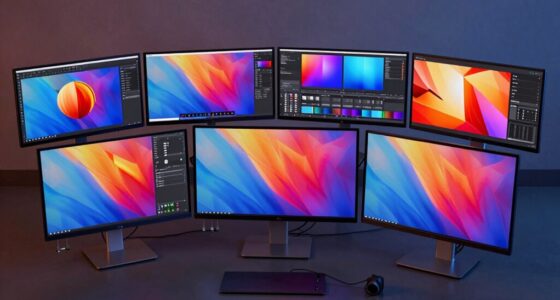

This checklist is for developers, designers, and QA professionals building a more organized desk around a laptop or desktop workflow. It covers six desk essentials, from connecting peripherals to arranging your display and managing cables.

Get business pricing on monitors, keyboards and dev gear
- Business-only prices and quantity discounts
- Tax-exempt purchasing
- Multiple users, one account, clear invoices
Each section focuses on one product slot and explains why it can matter, what to check before choosing, and who the listed pick may suit. The items are organized by the role they play in a desk setup, so you can compare them with your existing equipment.
Use the checklist to identify gaps first, then confirm fit and compatibility with your devices, desk, and working habits. Product names alone do not establish specifications, so verify details such as ports, dimensions, operating system support, and mounting requirements with the manufacturer before buying.
USB-C docking station
A docking station can help bring a laptop-centered workspace together by providing a place to connect displays and other peripherals. The listed pick, Anker Prime DL7400 14-in-1 DisplayLink Docking Station, is identified as a USB-C dock with DisplayLink in its name. Before choosing it, map out what you actually need to connect: laptop, monitors, keyboard, mouse, storage, network, and power accessories. A clear list makes it easier to compare the dock’s available connections against your setup.
A common mistake is assuming that a USB-C connector guarantees every desired feature. Check the dock’s documentation for compatibility with your computer, operating system, displays, and intended resolution or refresh rate. Confirm whether any software is required for DisplayLink and whether your workplace permits it. Also check how the laptop receives power, what cables are included, and whether the dock can sit comfortably where you plan to use it. Port count alone does not tell you whether the right mix of connections is available.
For a compact desk, measure the intended location and allow room for cables to bend without strain. Verify the dock’s dimensions and whether its orientation and cable exits fit your layout. Match the host connection and monitor inputs before purchase, especially if you switch between multiple computers. Compatibility first helps avoid a setup that looks convenient on paper but cannot serve your actual devices.
What to look for:
- Confirm the host computer supports the dock and its DisplayLink requirements.
- Match the dock’s ports to every peripheral and display you plan to connect.
- Check display support against your monitors’ inputs and intended settings.
- Verify laptop power delivery needs and included cables in the product documentation.
- Measure the desk location and account for connected cable clearance.
Anker Prime DL7400 14-in-1 DisplayLink Docking Station

This docking station connects up to three 4K displays and offers USB-C, USB-A, HDMI, DisplayPort, Ethernet, audio, and SD/TF card ports. It supports laptop charging up to 140W, with a built-in display and fan for monitoring and cooling.
Pros:
- Supports up to three 4K external displays
- Provides up to 140W laptop charging
- Broad selection of ports, including 2.5Gbps Ethernet
- Built-in smart display and fan cooling
Cons:
- Requires a DisplayLink driver for triple-display use
- DRM-protected streaming may show a black screen
- Front USB-C ports do not support video output
Best for: People who want to connect several desk peripherals through a dock.
Not ideal for: Anyone whose computer or display setup does not match the dock’s documented support.
Bottom line: Choose this dock only after its documented connections and DisplayLink support match your computer and complete setup.
Mechanical keyboard
A keyboard is one of the most frequently used parts of a developer desk, so layout and feel can shape everyday comfort. The listed pick is the Cherry KW X ULP 2.0 MINI Ultra Low Profile Compact Mechanical Keyboard. Its name identifies it as compact, mechanical, and ultra low profile; those cues make it worth comparing with your available desk space and typing preferences. Consider whether you routinely use a number pad, dedicated navigation keys, or a particular layout before deciding that a compact board is right for you.
A common buying mistake is choosing by appearance or compactness without checking the exact layout. Look at the key arrangement and confirm that frequently used keys, shortcuts, and symbols are where you expect them. Verify connection type, operating system compatibility, and any software or pairing requirements in the manufacturer’s details. For shared or changing workstations, consider whether the keyboard can connect in the way your devices require. Layout familiarity matters especially when switching between machines or languages.
Think about how the keyboard will sit alongside your mouse and whether its footprint leaves enough room for comfortable positioning. Low-profile keys may feel different from taller designs, so review the product description and, where possible, try a comparable keyboard before settling on the typing experience. Check the keyboard’s dimensions against your desk and any carrying case if you move between workspaces. A good fit depends on your habits as much as the product’s footprint.
What to look for:
- Confirm the exact key layout and which dedicated keys it includes.
- Check operating system support and connection or pairing requirements.
- Compare the keyboard’s dimensions with your desk and mouse placement.
- Consider whether the low-profile key feel suits your typing preferences.
- Verify that your commonly used shortcuts and symbols fit the layout.
Cherry KW X ULP 2.0 MINI Ultra Low Profile Compact Mechanical Keyboard

This ultra-slim mechanical keyboard features a compact design without a numpad, suitable for multi-device use with Bluetooth, 2.4 GHz wireless, and wired connections. It offers German-made Cherry MX ultra-low profile switches, backlit keys, and compatibility with Windows and Mac systems.
Pros:
- Compact and ultra-slim design ideal for portability
- Multi-device connectivity with secure encryption
- High-quality Cherry MX switches for precise typing
- Backlit keys with RGB lighting
Cons:
- No numeric keypad, may not suit users needing a full-sized keyboard
- Limited to 4 devices, which might be restrictive for some users
Best for: Typists seeking a compact, low-profile mechanical keyboard.
Not ideal for: Anyone who needs a full-size layout or specific keys absent from the listed layout.
Bottom line: Check the layout, connectivity, and key feel against your daily typing needs before choosing this compact keyboard.
Vertical ergonomic mouse
A mouse occupies a small area but can affect how your hand rests during long work sessions. This checklist’s pick is the Evoluent Vertical Mouse VMDMW Wireless Ergonomic Right-Hand USB Mouse. Its name specifies a wireless, right-hand USB mouse with a vertical design. That makes hand orientation and device compatibility central checks: a right-hand model is intended for a particular orientation, and a vertical shape can feel unfamiliar if you have only used a conventional mouse.
A frequent mistake is assuming that an ergonomic label guarantees a comfortable fit. Hand size, grip, pointer habits, and desk position all influence how a mouse feels. Check the manufacturer’s sizing guidance, if available, and confirm the connection method, receiver or cable needs, and operating system support. Look for the control layout and determine whether it offers the buttons or scrolling behavior you rely on. Fit and control placement deserve attention before the ergonomic description.
Allow room beside your keyboard for the mouse and keep the movement area clear of desk edges or accessories. If you alternate between hands or share the workstation, confirm that the right-hand orientation suits every intended user. Consider how the wireless connection works with your computer and whether any required USB port is available, especially if the laptop is usually connected to a dock. Try the hand position when you can, since the transition from a standard mouse may take adjustment.
What to look for:
- Confirm the right-hand orientation and compare it with your intended user.
- Check sizing guidance against your hand and preferred grip.
- Verify USB connection, wireless requirements, and operating system support.
- Review button placement and scrolling controls for your routine tasks.
- Ensure there is enough clear desk space beside the keyboard.
Evoluent Vertical Mouse VMDMW Wireless Ergonomic Right-Hand USB Mouse

The Evoluent Vertical Mouse supports a neutral handshake position to reduce wrist strain and forearm twisting. It features adjustable pointer speeds, customizable buttons, and wireless connectivity, offering comfort and precision for long-term use.
Pros:
- Reduces wrist and forearm strain with ergonomic design
- Customizable buttons and adjustable pointer speeds
- Wireless connectivity for convenience
- High precision sensor for accurate tracking
Cons:
- Requires one AA battery, which is not rechargeable
- Limited to Windows compatibility
- Design may take time to adapt for new users
Best for: Right-handed users exploring a vertical mouse shape.
Not ideal for: Left-handed users or anyone whose grip does not suit the documented fit.
Bottom line: Confirm the size, hand orientation, and connection requirements before making this mouse your daily pointer.
Monitor light bar
A monitor light bar is intended to sit at the display area, so compatibility with the monitor and the way you work should guide this slot. The listed pick is the BenQ ScreenBar Halo 2 LED Monitor Light Bar with Wireless Controller a. Because the product name does not provide enough information to establish its mounting range or full feature details, consult the manufacturer’s current listing before deciding it fits your screen.
A common mistake is treating all monitor tops as interchangeable. Check the display’s shape, bezel, thickness, and any attached webcam or other accessory against the light bar’s documented mounting requirements. Review how the wireless controller operates, what it needs to function, and whether the light bar’s controls and adjustments suit your desk. Also confirm whether your display arrangement includes multiple monitors or an unusual screen shape that could affect placement. Mounting compatibility is more useful to confirm than relying on the product category alone.
Consider the position of the monitor relative to your keyboard, work surface, and viewing angle. Make sure the light bar will not obstruct accessories or interfere with how you adjust the display. Review the manufacturer’s description for power connection and included components, then check that the cable can reach a suitable port or outlet without crossing your working area. If you use a laptop screen, verify that the product is intended for that display before buying. Check the actual setup with your screen model and accessories in mind.
What to look for:
- Check the manufacturer’s supported monitor dimensions and mounting range.
- Confirm the shape and bezel of your monitor suit the mounting design.
- Review the wireless controller’s operation and power requirements.
- Verify included components and the light bar’s power connection.
- Allow clearance for webcams, monitor adjustments, and nearby accessories.
BenQ ScreenBar Halo 2 LED Monitor Light Bar with Wireless Controller and Motion

The BenQ ScreenBar Halo 2 is an adjustable LED monitor light designed to reduce eye strain with glare-free illumination and customizable color temperature. It features wireless control, automatic on/off, and fits curved monitors, making it ideal for work, study, and gaming environments.
Pros:
- Reduces eye fatigue with glare-free, balanced illumination
- Wireless controller allows easy adjustment of brightness and color temperature
- Fits a wide range of monitor sizes and curved screens without damage
- High color accuracy (CRI > 95) suitable for professional work
Cons:
- Requires USB power source, limiting placement options
- May be more expensive compared to basic monitor lights
- Some users might find the setup complex
Best for: People whose monitor matches the documented mounting requirements.
Not ideal for: Setups with screens or accessories that conflict with the light bar’s fit.
Bottom line: Check monitor fit, controller requirements, and power details against the manufacturer’s current documentation.
Laptop stand
A laptop stand can raise or reposition a computer, making it easier to arrange the screen alongside an external monitor or keyboard. The listed pick is the Nulaxy 18" Height Telescopic 360° Rotating Aluminum Laptop Stand, Gray. Its name describes a height-adjustable, rotating stand, but the product name alone does not confirm which laptop sizes or weights it supports. Check the manufacturer’s fit guidance and load limits before placing your computer on it.
A common mistake is focusing on adjustability while overlooking stability and the laptop’s footprint. Compare the stand’s platform dimensions with the laptop’s base, and check how its support points interact with vents, ports, and feet. Confirm whether the intended height and rotation work for your desk and viewing position. If you plan to type directly on the laptop, consider whether the raised position will be comfortable or whether you will use an external keyboard. Screen height and typing position are related but may call for different arrangements.
Measure available desk space and check that the stand’s base can rotate without striking a monitor, wall, or other equipment. Verify that the adjustment mechanism is suitable for frequent repositioning if you expect to change its angle during the day. Review assembly requirements and any care instructions for the aluminum construction. For a shared setup, consider whether the stand can be set to the positions each user needs. Stable placement starts with matching the stand to both the laptop and desk.
What to look for:
- Verify supported laptop dimensions and weight with the manufacturer.
- Compare the platform and support points with the laptop’s base and vents.
- Check that the height range suits your viewing position and desk.
- Allow clearance for full rotation and nearby screens or accessories.
- Decide whether you will type on the laptop or use an external keyboard.
Nulaxy 18" Height Telescopic 360° Rotating Aluminum Laptop Stand, Gray
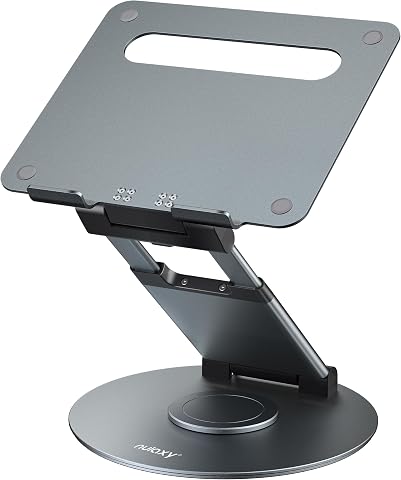
This adjustable laptop stand features 360° rotation, height up to 18 inches, and tilt angle adjustment for ergonomic comfort. It supports laptops up to 17 inches and can hold up to 22 pounds, making it ideal for collaborative work and comfortable viewing.
Pros:
- 360° rotation for easy sharing and collaboration
- Adjustable height and tilt for ergonomic comfort
- Supports laptops up to 17 inches and 22 lbs
Cons:
- Requires external keyboard and mouse for optimal use
- Laptops should be removed before adjusting height or angle
Best for: Laptop users who want height and rotation adjustments at the desk.
Not ideal for: Anyone whose laptop exceeds the documented support range or needs a fixed low profile.
Bottom line: Confirm laptop fit, stability, and rotation clearance before adding this stand to your desk.
Under-desk cable tray
An under-desk tray can provide a place to organize cables and related accessories beneath the work surface. The listed pick is the Ascrono Original Under Desk Cable Management Tray, Black, 40.6 inches. Its name gives a length, but that number alone does not establish whether the tray fits your desk or how it attaches. Measure the underside of the desk and review the manufacturer’s installation requirements before choosing this slot.
A common buying mistake is measuring only the available width and forgetting supports, drawers, crossbars, or other obstacles beneath the desk. Check the tray’s full dimensions, mounting method, and required clearance. Confirm whether your desk material and construction are compatible with the installation approach, and review whether tools or hardware are included. Think through what you intend to route or store there; the tray’s name does not specify capacity or which power accessories it can accommodate. Underside clearance can determine whether installation is practical.
Plan cable paths before mounting so cords can reach their devices without pulling tight or hanging into leg space. Leave access to plugs or power equipment that may need occasional adjustment, and check that the tray will not obstruct a sit-stand desk’s movement if applicable. Confirm how the finished arrangement will look from your usual seated or standing position. Measure twice across the desk’s usable underside, including the route cables will take to reach the tray.
What to look for:
- Measure usable underside width and compare it with the listed 40.6-inch length.
- Check desk construction, mounting method, and installation requirements.
- Account for drawers, supports, crossbars, and moving desk components.
- Plan cable reach and access to plugs before installation.
- Verify the tray’s dimensions and capacity against the items you plan to route.
Ascrono Original Under Desk Cable Management Tray, Black, 40.6 inches

This under desk cable management tray conceals cords, power strips, and adapters, keeping your workspace tidy and organized. Made from fire-retardant fabric, it supports up to 66 lbs and offers versatile mounting options for various desk setups.
Pros:
- Conceals cords and power strips for a tidy workspace
- Supports a large capacity for multiple devices
- Easy to install with versatile mounting options
Cons:
- Limited to a length of 40.6 inches, may not fit larger desks
- Fabric material may wear over time with heavy use
Best for: People with enough clear underside space for a 40.6-inch tray.
Not ideal for: Desks with limited clearance or incompatible mounting surfaces.
Bottom line: Measure the desk underside and confirm mounting requirements before choosing this cable tray.
Start with the items that resolve the biggest workflow gap: confirm a dock can connect your required devices, then address the keyboard or mouse that shapes daily interaction. Next, check display positioning and lighting, followed by the stand and cable tray once you have measured the desk. Compatibility and fit should guide the order more than adding every accessory at once.
Use the checklist as a practical way to turn a collection of products into a setup that suits your equipment and habits. Verify each model’s current specifications and make one change at a time so you can see what helps. A thoughtful workspace can start with a single well-matched addition.
Columbus Day / Indigenous Peoples' Day Picks
long weekend sales
As an affiliate, we earn on qualifying purchases.