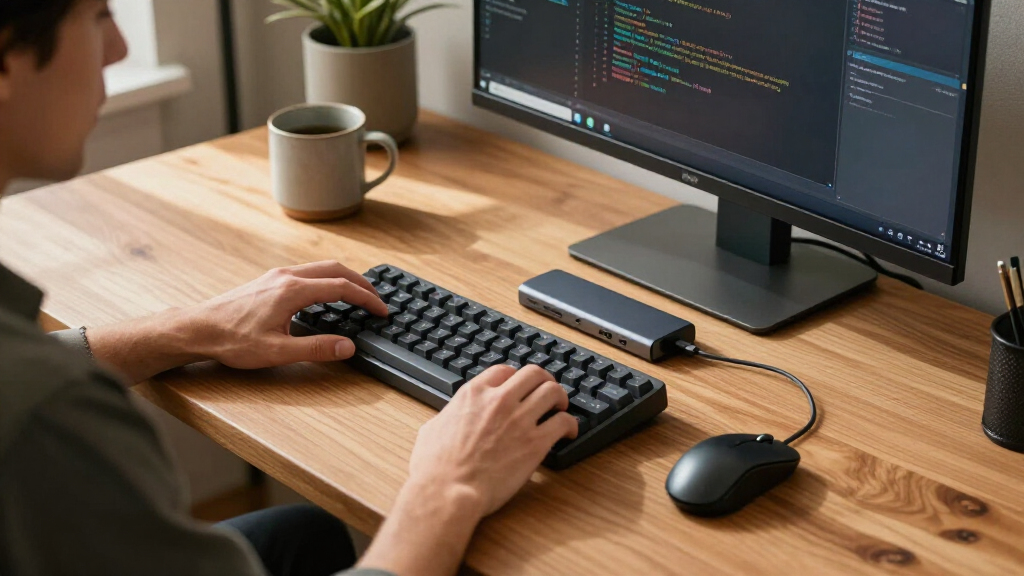
This checklist is for developers, QA professionals, and other software teams who want to make a workstation more comfortable and capable. It covers accessories for connecting displays, typing, pointing, storing files, capturing audio, and lighting a monitor setup, with practical use in mind.

Get business pricing on monitors, keyboards and dev gear
- Business-only prices and quantity discounts
- Tax-exempt purchasing
- Multiple users, one account, clear invoices
The sections are organized by accessory type, so you can jump to the part of your setup you want to improve. Each one focuses on fit and compatibility: what to check before choosing a dock, keyboard, trackball, SSD, microphone, or light bar.
Use the checklist to compare each pick with your computer, desk, and daily workflow. Confirm the product’s specific requirements against your own devices and preferences, then prioritize the accessory that addresses your biggest workstation need.
USB-C docking station
A docking station can bring display and peripheral connections together, which matters when your development setup includes multiple screens or you regularly connect a laptop to a desk. The listed pick is a 13-in-1 USB-C dock with triple-monitor support and 100W charging, so check that your computer supports the display connections and charging arrangement you intend to use.
A common buying mistake is assuming that a USB-C port guarantees every feature you want. Check your computer’s specifications for external display support, power delivery, and compatibility with the dock’s connection types. Also consider where the dock will sit, how much cable reach you need, and whether its available ports match the devices you plan to connect. For multiple monitors, verify that your operating system and computer support your desired display count and arrangement. Port and display compatibility should guide the choice; the product name alone does not confirm fit with a particular computer.
What to look for:
- Confirm your computer supports the dock’s USB-C features and charging.
- Check support for three external monitors and your intended display arrangement.
- Match the dock’s ports to your peripherals and cables.
- Consider dock placement and the cable reach required at your desk.
Plugable USB-C Triple Monitor Docking Station, 13-in-1, 100W Charging

The Plugable USB-C Triple Monitor Docking Station offers 13 ports, including HDMI, USB-A, Ethernet, SD card reader, and USB-C charging, making it ideal for enterprise and home office setups. Supports up to three 4K displays and provides up to 100W power delivery for laptops.
Pros:
- Supports up to three 4K monitors for enhanced productivity
- Provides 100W charging for laptops and 20W for accessories
- Universal compatibility with Windows, macOS, and ChromeOS
- Includes a variety of ports for versatile connectivity
Cons:
- Driver installation required for HDMI ports on Mac
- Does not support HDCP protected content like Netflix or Hulu
Best for: Developers connecting compatible computers to several displays and peripherals.
Not ideal for: People whose computer or desk setup does not match the dock’s connection needs.
Bottom line: Check computer, display, and port compatibility before building your setup around this dock.
Mechanical keyboard
A keyboard is one of the main points of contact in a development workstation, so its layout and feel can shape everyday comfort. The listed pick is a wireless mechanical keyboard with tactile quiet switches and illumination. Before choosing it, make sure its layout suits your typing habits and the devices where you plan to use it.
Common mistakes include selecting a keyboard without checking its exact layout, overlooking how its switch feel compares with your preference, or assuming wireless connectivity will work with every device. Confirm the connection options and operating-system compatibility from the product details. Consider the keyboard’s footprint and the room you need for a mouse or trackball; also check whether its height and key spacing feel suitable for your desk and posture. If you switch among computers, verify that the keyboard supports the way you intend to connect and move between them. Layout and connection fit matter more than broad labels like mechanical or wireless, which do not by themselves establish that a keyboard will suit your setup.
What to look for:
- Verify the exact keyboard layout matches your typing needs.
- Check switch feel and sound against your preferences and work setting.
- Confirm wireless connection options and device compatibility.
- Measure desk space alongside your pointing device.
Logitech MX Mechanical Wireless Illuminated Keyboard, Tactile Quiet, Graphite
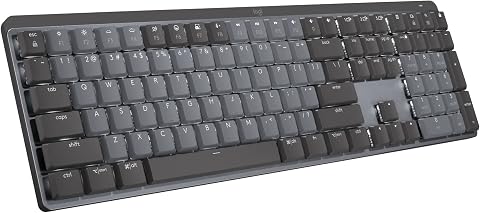
A full-size wireless mechanical keyboard with low-profile Tactile Quiet switches, smart backlighting, and support for pairing with up to three devices. Its rechargeable battery lasts up to 15 days with backlighting enabled, or up to 10 months with backlighting off.
Pros:
- Quiet tactile switches provide typing feedback with less noise.
- Smart backlighting responds to nearby hands and ambient lighting.
- Can pair with up to three devices across multiple operating systems.
- Long battery life and USB-C recharging.
Cons:
- Some features require Logi Options+ software on Windows or macOS.
- Bluetooth connection may prevent entering a FileVault password at startup; the Logi Bolt receiver is recommended in that case.
Best for: People who want a wireless mechanical keyboard with tactile quiet switches.
Not ideal for: Anyone who needs a different layout, switch feel, or connection method.
Bottom line: Confirm the layout, switch preference, and device compatibility before choosing this keyboard.
Trackball mouse
A trackball offers a different way to control a pointer: you move the ball rather than moving the whole mouse across the desk. That can be useful to consider when desk space or pointing-device preference is part of your workstation planning. The listed pick is a wired USB trackball; check its shape and control style against your hand and how you work.
A frequent buying mistake is choosing by the word ergonomic alone. Hand size, handedness, button placement, and the feel of operating the ball all affect whether a pointing device suits an individual. Review the product’s dimensions and design, and consider whether you want a wired connection and have an accessible USB port. If you rely on particular buttons or gestures in your workflow, verify that the device provides the controls and software support you need. A trackball also asks for a different movement habit than a conventional mouse, so consider whether you are comfortable adapting. Hand fit and control style are personal; the product name does not establish that it will feel comfortable for every user.
What to look for:
- Check the trackball’s shape, dimensions, and handedness.
- Consider whether the ball and button layout suit your control preferences.
- Confirm a wired USB connection works with your computer and available ports.
- Verify any required buttons or software features for your workflow.
Logitech Trackman Marble Trackball Mouse – Wired USB Ergonomic Mouse with 4 Prog

The Logitech Trackman Marble is an ergonomic, ambidextrous wired mouse featuring a sculpted design that supports both hands and allows cursor movement without arm movement. It includes large, easy-to-reach buttons and four programmable controls for customization, with plug-and-play connectivity for Windows and Mac systems.
Pros:
- Ergonomic design suitable for both hands
- No setup required, plug-and-play connectivity
- Programmable buttons for customization
- Supports cursor movement without arm movement
Cons:
- Limited to wired connection
- May require some time to get used to the trackball
- No wireless options available
Best for: People who prefer controlling a pointer with a trackball.
Not ideal for: Users who want a conventional moving mouse or a wireless connection.
Bottom line: Choose this trackball only if its hand fit, controls, and wired USB connection suit you.
Portable SSD
External storage can be useful for carrying project files or keeping a separate copy of work. The listed pick is a portable 8TB SSD. Before selecting it, consider what you plan to store, how you will connect it, and whether your computer and workflow support the drive’s interface and file-system needs.
One common mistake is treating the capacity in a product name as a substitute for checking how the drive will be used. Confirm your computer’s available connection, the cables needed, and compatibility with the operating systems or devices involved. Consider how the drive will travel with you, where it will be stored, and whether your organization has requirements for handling work files. If you plan to share files across devices, verify that their file-system formats and access policies align. An external drive may complement a backup plan, but its presence alone does not establish that files are protected. Workflow compatibility includes connection, file handling, and storage practices, so check those details before relying on a drive for important projects.
What to look for:
- Confirm the drive’s connection and cable needs match your devices.
- Check compatibility with your operating systems and file-handling workflow.
- Decide whether the listed capacity suits the files you plan to carry.
- Review workplace requirements for storing or transporting project files.
SanDisk 8TB Extreme Portable SSD

The SanDisk 8TB Extreme Portable SSD offers high-speed NVMe performance with up to 1050MB/s read and 1000MB/s write speeds. It features rugged durability with drop, water, and dust resistance, along with password protection and a 5-year warranty, making it ideal for active lifestyles and professional use.
Pros:
- High-speed data transfer with up to 1050MB/s read and 1000MB/s write speeds
- Rugged design with drop, water, and dust resistance for durability
- Includes password protection with 256-bit AES encryption for security
- Compact and portable, ideal for travel and on-the-go use
Cons:
- Performance may vary depending on host device and conditions
- Limited to USB 3.0 and USB 3.2 Gen 2 connectivity, may require compatible ports
- Price not specified, which could be a consideration for budget-conscious buyers
Best for: People who need a portable SSD for files in their workflow.
Not ideal for: Anyone whose devices or file-handling requirements do not support this drive.
Bottom line: Verify connection, device, and file-management compatibility before using this SSD for projects.
USB microphone
A microphone can be a useful part of a workstation for calls, recordings, or other audio work. The listed pick is a USB-C and XLR dynamic microphone, giving you two connection types to assess against your setup. Consider where you will use it, what you will connect it to, and whether your preferred recording workflow supports the chosen connection.
A common mistake is assuming that a microphone’s connectors alone settle compatibility. Check whether your computer has the needed USB-C connection or whether your audio setup supports XLR, and confirm any required cables or accessories in the product details. Think about desk placement, available space, and how close you will sit while using it. For calls or recordings, verify that your software can select the microphone as an input and that your operating system recognizes it. If you plan to alternate between connection methods, check how each will fit your workflow. Connection and placement both matter: a microphone that fits your devices still needs to work in the space and audio setup you actually use.
What to look for:
- Confirm USB-C or XLR compatibility with your intended setup.
- Check which cables or additional audio equipment your connection method requires.
- Verify your operating system and audio software can use the microphone.
- Plan desk placement and reach for your typical recording position.
Shure MV7+ USB-C and XLR Dynamic Podcast Microphone, Black

The Shure MV7+ is a dynamic microphone for podcasting, streaming, voiceovers, and recording. It offers USB-C and XLR connectivity, voice isolation, automatic level adjustment, real-time noise reduction, built-in reverb, and a customizable LED touch panel with tap-to-mute control.
Pros:
- USB-C and XLR outputs support simple and studio setups
- Auto Level Mode helps keep audio levels consistent
- Voice isolation and denoising help reduce background noise
- LED touch panel includes level monitoring and tap-to-mute
Cons:
- Requires a corded power connection
- Some features may require compatible devices or software
Best for: People whose audio setup can use USB-C or XLR.
Not ideal for: Users without a compatible connection or suitable microphone placement.
Bottom line: Match the microphone’s connection to your computer or audio setup and confirm software support.
Monitor light bar
A monitor light bar is an option to consider when planning how your workstation is lit around the display. The listed pick is a monitor light bar with wireless controller. Before choosing it, check the monitor’s shape and top edge, the space available around the screen, and whether the controls fit the way you prefer to adjust your lighting.
A common buying mistake is assuming that any light bar will fit any monitor. Compare the product’s mounting requirements with your monitor’s thickness, curvature, bezel, and any attachments already in place. Check the product details for the required clearance and controller arrangement, and consider where the controller will sit within reach. If you use a webcam or other equipment above the display, make sure the mount and accessories can coexist. Also consider whether the bar’s controls and lighting adjustments match your workspace preferences. Monitor fit and clearance are the practical starting points; the product name does not confirm compatibility with a particular screen or accessory setup.
What to look for:
- Check mounting compatibility with your monitor’s shape and top edge.
- Review clearance needs around the display and existing attachments.
- Consider webcam placement and other equipment mounted near the screen.
- Confirm the wireless controller’s placement and controls suit your desk.
BenQ ScreenBar Halo 2 LED Monitor Light Bar with Wireless Controller and Motion

The BenQ ScreenBar Halo 2 is an adjustable LED monitor light designed to reduce eye strain with glare-free illumination and customizable color temperature. It features wireless control, automatic on/off, and fits curved monitors, making it ideal for work, study, and gaming environments.
Pros:
- Reduces eye fatigue with glare-free, balanced illumination
- Wireless controller allows easy adjustment of brightness and color temperature
- Fits a wide range of monitor sizes and curved screens without damage
- High color accuracy (CRI > 95) suitable for professional work
Cons:
- Requires USB power source, limiting placement options
- May be more expensive compared to basic monitor lights
- Some users might find the setup complex
Best for: People whose monitor and desk can accommodate this light bar.
Not ideal for: Users whose screen shape or attachments prevent a compatible fit.
Bottom line: Check monitor dimensions, mount clearance, and accessory placement before choosing this light bar.
Build the setup in the order that addresses your most immediate need: first confirm the dock and computer connection if you need more display or peripheral access, then choose the keyboard or pointing device that fits your daily work. Add portable storage, a microphone, or monitor lighting when they support a specific part of your workflow. Compatibility checks can help prevent choosing accessories that do not suit your devices or desk.
You do not need to change every part of your workstation at once. Start with one accessory, verify its fit in your actual setup, and use what you learn to guide the next choice. A thoughtful checklist makes it easier to create a workstation that fits your tools, space, and habits.
Fall Picks
fall essentials
As an affiliate, we earn on qualifying purchases.