Choose and set up wireless earbuds for coding, video calls, and focused work. This guide is for developers who want a reliable everyday setup without assuming specialist audio knowledge. Allow about 30-45 minutes to compare your needs, pair the earbuds, adjust device settings, and test them in the apps you use.

Get business pricing on monitors, keyboards and dev gear
- Business-only prices and quantity discounts
- Tax-exempt purchasing
- Multiple users, one account, clear invoices

Samsung Galaxy Buds 4 Pro (2026) AI True Wireless Bluetooth Earbuds, Black
- ✔ Connection: Bluetooth 6.1
- ✔ Noise control: Adaptive ANC 2.0
- ✔ Speakers: Two-way speaker system with tweeter and woofer in each earbud
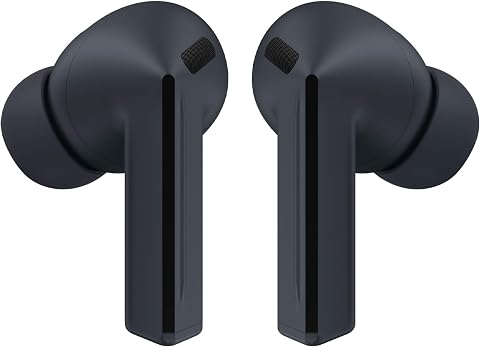
Samsung Galaxy Buds 3 FE (2025) True Wireless Bluetooth Earbuds, Black
- ✔ Connection: Bluetooth 5
- ✔ Noise control: Active noise cancellation and Ambient mode
- ✔ Driver: 11 mm dynamic speaker

JBL Vibe Beam – True Wireless Earbuds – Black
- ✔ Connection: Bluetooth 5
- ✔ Driver: 8 mm dynamic driver
- ✔ Noise control: Closed fit with sound isolation; Smart Ambient features
Difficulty: Beginner | Time: 30-45 minutes
What You’ll Need
Tools & Materials:
- A phone or computer with Bluetooth
- Wireless earbuds and their charging case
- A video-call app you use for work
- A quiet room for microphone testing
Knowledge:
- Basic Bluetooth pairing
- How to select an audio input and output in your operating system or call app
Charge the earbuds and case before testing. If you are buying a new pair, check your computer and phone compatibility, return window, and workplace rules for Bluetooth devices. Keep wired headphones available if your work depends on uninterrupted calls or low-latency audio.
Samsung Galaxy Buds 4 Pro (2026) AI True Wireless Bluetooth Earbuds, Black
The Galaxy Buds4 Pro make the most sense for developers who spend much of the day listening in changing environments and already use Samsung devices. Their Adaptive ANC 2.0 is designed to adjust in real time, which can help when the sound around a desk shifts between quiet work and nearby conversation. The two-way speaker system, with a tweeter and woofer in each bud, also puts these ahead of the Buds3 FE for people who use music or spoken audio to make long work sessions more comfortable.Calls and device-specific assistance add to the workday case: Samsung describes HD Voice when paired with Galaxy S26 Series, plus hands-free AI and live translation features. Those advantages come with a meaningful compatibility caveat. Several features require a compatible Galaxy or Android device, and the listing does not promise one-step switching across arbitrary laptops and phones. Compared with the Buds3 FE, the Pro model adds a more advanced audio and noise-control package; compared with JBL’s Vibe Beam, it offers active cancellation and richer ecosystem features, but asks the buyer to navigate more device requirements.The IP57-rated earbuds are also better suited to wet commutes than the Buds3 FE, which are described as splash resistant. The case is not water resistant, and the supplied information does not specify battery runtime, so we would not choose them on endurance alone. Developers using non-Galaxy computers should confirm how their preferred switching workflow behaves before treating these as a desk-wide solution.
Pros:
- Adaptive ANC 2.0 is designed to respond to changing surroundings.
- Two-way speakers support richer highs and fuller lows than a single-driver setup.
- Changeable ear tips and an ear-hugging design address fit during extended listening.
- IP57 rating adds water and dust resistance to the earbuds.
Cons:
- Many AI and setup features depend on compatible Samsung or Android devices.
- The supplied product details do not state battery life.
- The charging case is not water resistant.
Best for: Galaxy developers who want adaptive noise cancellation, higher-detail listening, and hands-free features for work and travel.
Not ideal for: People who need confirmed seamless switching across mixed computer and phone platforms, or who want a clearly stated battery runtime.
Bottom line: For Galaxy-based development setups, the Buds4 Pro offer the broadest mix of focus, call, and listening features in this comparison.
“For Galaxy-based development setups, the Buds4 Pro offer the broadest mix of focus, call, and listening features in this comparison.”
Samsung Galaxy Buds 3 FE (2025) True Wireless Bluetooth Earbuds, Black
For developers who use a Galaxy phone, tablet, and compatible Galaxy Book, the Galaxy Buds3 FE put useful workday controls in a more approachable package. Samsung says the buds can automatically switch among compatible Galaxy devices after setup, so moving from a phone call to audio on a tablet or supported PC may take less manual reconnecting. That ecosystem convenience is the central reason to choose them over the JBL Vibe Beam, which offers basic Bluetooth connectivity but no comparable multi-device feature in the supplied details.Noise control is another practical advantage over JBL: active noise cancellation can help with steady background sound, while Ambient mode lets us hear more of the surroundings when needed. Samsung lists up to 8.5 hours of playback with ANC off and up to 30 hours total with the case. The caveat is that the number depends on ANC being off, and the richer controls and switching features are tied to Android or Galaxy compatibility. The Buds4 Pro offer adaptive ANC, a two-way speaker system, and an IP57 rating, so developers seeking the most capable audio and durability setup should consider stepping up within the Samsung line.For routine calls, the added microphone and background-noise reduction are aimed at clearer conversations. The IPX4 rating provides splash resistance for the earbuds, but the case is not water resistant. These are a sensible middle pick for developers already invested in Samsung’s ecosystem; buyers using a mix of brands should weigh that convenience against JBL’s simpler, less ecosystem-dependent feature set.
Pros:
- Automatic switching is available across compatible Galaxy devices.
- ANC and Ambient mode cover focused listening and situational awareness.
- Samsung lists up to 8.5 hours with ANC off and up to 30 hours total with the case.
- Microphone and background-noise reduction features target clearer calls.
Cons:
- Automatic switching depends on compatible Galaxy devices and account setup.
- The stated 8.5-hour earbud runtime is with ANC off.
- IPX4 applies to the earbuds; the case is not water resistant.
Best for: Developers with several compatible Galaxy devices who want ANC, ambient listening, and convenient switching between them.
Not ideal for: People seeking the strongest listed water resistance, premium two-way audio, or universal switching across mixed-device setups.
Bottom line: Choose the Buds3 FE when Galaxy device switching matters more than the Buds4 Pro’s more advanced audio and adaptive noise control.
“Choose the Buds3 FE when Galaxy device switching matters more than the Buds4 Pro’s more advanced audio and adaptive noise control.”
JBL Vibe Beam – True Wireless Earbuds – Black
The JBL Vibe Beam are the straightforward pick for developers who want everyday wireless audio without making Samsung’s device ecosystem part of the decision. JBL lists compatibility with laptops, PCs, phones, and tablets, plus up to 32 hours total battery life from the earbuds and charging case. That makes this option easier to consider for a mixed-device setup than the Samsung models’ more specialized switching features, though the listing does not describe automatic handoff between devices.For calls and short interruptions, Smart Ambient includes TalkThru and Ambient Aware, and VoiceAware lets us adjust how much of our own voice we hear during hands-free calls. The closed, stick-style fit is intended to improve isolation and bass performance, but it is not active noise cancellation. That distinction matters in a busy office or shared home: the Galaxy Buds3 FE and Buds4 Pro provide ANC for stronger noise management, while JBL relies on its fit and passive isolation. Developers who need a quiet bubble for concentration should favor one of the Samsung options.Battery is a strong point here: JBL states eight hours in the earbuds and 24 hours in the case, with a quick-charge feature that adds two hours of listening after ten minutes. We still have less information about water resistance specifics and call noise handling than Samsung provides. The Vibe Beam suits lighter workdays, commutes, and listening between coding blocks, but it gives up the Samsung picks’ ANC, advanced device integration, and richer listed call features.
Pros:
- JBL lists up to 32 hours total playback with the charging case.
- Quick charge is stated to add two hours of playback in ten minutes.
- TalkThru, Ambient Aware, and VoiceAware support calls and awareness.
- The supplied compatibility list includes laptops, PCs, smartphones, and tablets.
Cons:
- No active noise cancellation is described; noise management relies on fit and isolation.
- The listing does not establish automatic switching between devices.
- Water resistance and microphone noise reduction are less fully specified than on the Samsung models.
Best for: Developers who use a mix of laptops and mobile devices and prioritize long combined battery life, basic controls, and ambient options.
Not ideal for: People coding in noisy environments who need active noise cancellation or Galaxy-style automatic switching.
Bottom line: The Vibe Beam is the practical battery-focused choice for lighter work settings, but its passive isolation limits it for noisy coding spaces.
“The Vibe Beam is the practical battery-focused choice for lighter work settings, but its passive isolation limits it for noisy coding spaces.”
As an Amazon Associate we earn from qualifying purchases.
Before You Start
Decide how you will use the earbuds most often: long coding sessions, frequent calls, commuting, or a mix. Do not judge a pair by noise cancellation alone. Comfort, microphone quality, stable connection, battery life, and easy device switching all affect daily use. For security-sensitive work, follow your employer’s guidance on wireless devices and avoid pairing them with devices you do not control.
Step-by-Step Instructions
Step 1: List your daily audio needs
Write down the situations in which you expect to use the earbuds. Include the longest coding session, typical number and length of calls, whether you work in shared or noisy spaces, and whether you need to move between a computer and phone. Rank comfort, microphone clarity, connection reliability, noise control, battery life, and price. Use the list to compare candidates against your actual routine.
Tip:If you spend most of the day on calls, give microphone quality and comfort more weight than features aimed at music listening.
Check: You have a short ranked list of needs and a clear idea of your most demanding use case.
Step 2: Check compatibility and fit options
Confirm that the earbuds support Bluetooth pairing with your computer and phone. Check whether their app and firmware tools work on a device you can use; some models require a phone app to change controls or update firmware. If possible, choose a seller with a suitable return policy and ear tip sizes that match your ears. Look for a stated microphone mode, multipoint support if you need two connected devices, and controls you can use without opening an app.
Tip:Multipoint can connect earbuds to two devices, but behavior varies by model. Check whether calls on one device interrupt audio on the other.
Check: You know the earbuds can pair with your work devices and have a way to check comfort before keeping them.
Step 3: Pair the earbuds with your main computer
Put the earbuds in pairing mode using the manufacturer’s instructions. Open your computer’s Bluetooth settings, select the earbuds, and complete pairing. Play a short audio clip, then pause and resume it using the earbuds’ controls. If you use a work-managed computer, follow its device policy and contact IT if Bluetooth pairing is restricted.
Tip:Pair with the computer first so it becomes the main audio device during your initial setup. Keep the earbuds close to the computer while pairing.
Check: Audio plays from both earbuds, and the connection remains active when you pause and resume playback.
Step 4: Set the input and output devices
Open your operating system’s sound settings and select the earbuds as the output device. Select their microphone as the input if you plan to use it for calls. Make a brief recording or use the system’s microphone meter to confirm that your voice registers. Then open your call app’s audio settings and select the earbuds there too; many apps keep their own input and output choices rather than following the system defaults.
Tip:Bluetooth call mode can sound different from music mode because the earbuds handle both playback and microphone audio. Judge the setup during a real call test, not only while listening to music.
Check: Your system and call app show the intended earbuds for both input and output, and the microphone meter responds to your voice.
Step 5: Adjust the fit and controls
Try the available ear tips and choose a size that seals gently without pressure. Wear the earbuds for at least 15 minutes while reading or coding. Check that they stay in place when you turn your head and speak. In the manufacturer’s app or device settings, assign useful controls such as play or pause, mute, noise control, or volume if those options are available. Avoid assigning a control you might trigger accidentally during a call.
Tip:A secure fit can improve comfort and noise reduction. Stop using a tip that causes pain or persistent irritation.
Check: The earbuds remain comfortable during a short work session, and you can operate the controls without removing them.
Step 6: Test microphone and background noise
Join a test call or record a short voice sample in a quiet room. Speak at your normal volume, then repeat from the place where you usually take calls. Ask a colleague to confirm that your voice is clear if possible. Test mute and unmute, and check whether keyboard noise or nearby conversation becomes distracting. If your call app offers noise suppression, compare it on and off using the same short sample.
Tip:Noise suppression may reduce background sounds but can also make speech sound clipped. Choose the setting that keeps your words clear.
Check: Your voice is understandable at a normal volume, mute works as expected, and the chosen noise setting does not cut off words.
Step 7: Check switching, range, and battery routine
If you use a phone as well as a computer, pair it using the manufacturer’s instructions and test how audio switches between devices. Walk a short distance from the computer with a local audio clip playing, then return and confirm that playback reconnects. Use the earbuds through a typical work block and note the battery level before and after. Set a charging habit that fits your day, such as returning them to the case during lunch or charging the case overnight.
Tip:Walls, crowded wireless environments, and device placement can shorten Bluetooth range. Test from your actual desk rather than relying on a published maximum range.
Check: You know how device switching behaves, where the connection remains stable, and whether the battery covers your usual work block.
Common Mistakes to Avoid
- Choosing earbuds based only on music sound or noise cancellation. — Compare comfort, microphone clarity, call controls, connection reliability, and return terms against your ranked needs before deciding.
- Setting the earbuds only in the operating system. — Check the input and output selectors inside each call app because app settings may override system defaults.
- Using ear tips that are too large or too small. — Try the available sizes and test the fit for at least 15 minutes; choose a gentle, stable seal rather than forcing a tight fit.
- Assuming advertised battery life will cover calls and other use. — Test a normal work block with your call and noise-control settings enabled, then plan charging around the observed battery use.
Troubleshooting
Problem: The computer does not find the earbuds.
Solution:
Confirm that the earbuds are in pairing mode and not already connected to another nearby device. Turn Bluetooth off and on on the computer, then try pairing again. If the earbuds remain missing, follow the manufacturer’s reset instructions and check whether your work device restricts Bluetooth.
Problem: The earbuds play sound, but the call app uses another microphone.
Solution:
Open the app’s audio settings during the call and choose the earbuds as the microphone. Make a test recording or check the input meter. If the choice does not stick, restart the app and review the operating system’s microphone permissions.
Problem: Call audio sounds muffled or cuts out.
Solution:
Move closer to the computer and reduce obstructions between it and the earbuds. Close unnecessary audio connections, disconnect the phone temporarily, and try another call app or test recording. Update the app or earbud firmware if an update is available, then repeat the microphone check.
Problem: The earbuds become uncomfortable or run out of charge mid-session.
Solution:
Try a different ear tip size and take breaks if pressure or irritation persists. For short battery life, check whether noise cancellation or other features are draining power, charge the case fully, and compare runtime during a typical work block. Contact the seller or manufacturer if the fit or battery falls short during the return or warranty period.
What Success Looks Like
The earbuds pair reliably with your main computer, appear as the intended input and output in your call app, stay comfortable during a work block, and deliver clear speech in a test call. You have checked device switching and connection behavior at your desk, and the battery routine covers your usual use. Keep a wired or built-in audio option ready if a call is critical and the wireless connection fails.
Next Steps
Use the setup during ordinary work for several days and note any discomfort, missed connections, or battery gaps. Adjust the ear tips or app device choices based on those observations. Keep the case charged, clean the earbuds according to the manufacturer’s care instructions, and check firmware updates through the supported app. If the microphone remains unclear or the fit causes irritation, use the return or warranty process while it is available.
Frequently Asked Questions
Are wireless earbuds suitable for long coding sessions?
They can be if the fit remains comfortable and the battery lasts through your work block. Test them while coding for at least 15 minutes, then extend the trial before relying on them all day. Use speakers or a wired option if you need longer wear or frequent charging interrupts work.
Should I use the earbuds’ microphone or my computer’s microphone?
Use whichever sounds clearer in a test call. A computer microphone can sound better when the computer is positioned well, while an earbud microphone can be convenient when you move around. Select the input explicitly in the call app and check it after switching devices.
Will Bluetooth earbuds work for gaming or video editing?
Bluetooth can add audio delay, and call mode may reduce playback quality. Test timing-sensitive work with the exact app and device you plan to use. Choose wired headphones or a dedicated low-latency setup if the delay affects editing or monitoring.
Can I connect the same earbuds to my phone and computer?
Many models can pair with both, and some support simultaneous multipoint connections. Check the model’s behavior and test a call on each device. If switching is unreliable, disconnect the inactive device before joining an important call.